Disable Gemini in Chrome: A Comprehensive Guide
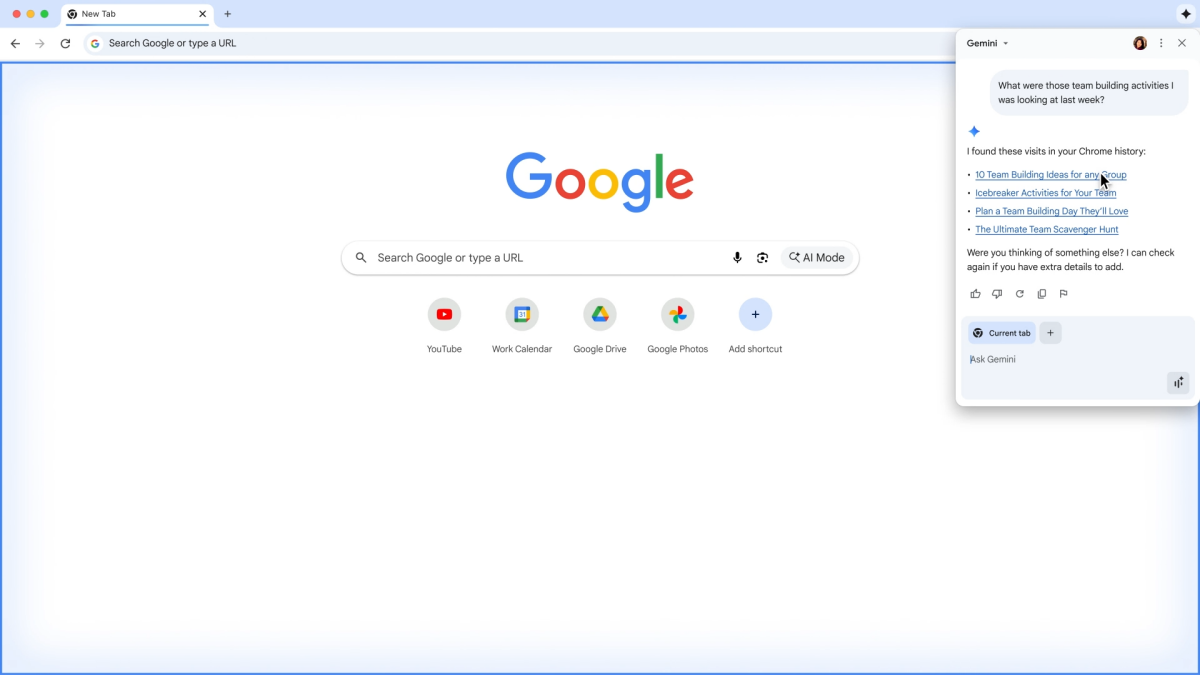
The integration of AI into everyday tools is rapidly changing how we interact with technology. Google’s Gemini, an advanced AI model, is now accessible directly within the Chrome browser. While this integration offers numerous benefits, some users may prefer to disable the Gemini in Chrome button. This guide provides detailed instructions on how to turn off the new ‘Gemini in Chrome’ button, offering a step-by-step approach to customize your browsing experience. Understanding how to manage these AI integrations ensures you maintain control over your digital environment.
Why Disable Gemini in Chrome?
Before diving into the how-to, let’s explore why you might want to disable Gemini in Chrome. Several reasons could prompt this decision:
- Privacy Concerns: Some users are wary of AI integrations that constantly analyze their browsing activity. Disabling Gemini can alleviate these privacy concerns.
- Performance Issues: Depending on your system, running AI in the background might impact browser performance. Turning off Gemini can free up resources.
- Unnecessary Feature: Not everyone needs or wants AI assistance while browsing. If you find the feature intrusive or irrelevant, disabling it makes sense.
- Preference for Traditional Browsing: Some users simply prefer the traditional browsing experience without AI enhancements.
Ultimately, the decision to disable Gemini in Chrome is a personal one, based on your individual needs and preferences. Understanding these reasons helps you make an informed choice.
Methods to Turn Off the Gemini in Chrome Button
There are several methods to disable the Gemini in Chrome button, ranging from simple settings adjustments to more advanced techniques. Here’s a breakdown of the most effective approaches:
Method 1: Using Chrome Flags
Chrome Flags are experimental features that allow you to customize the browser’s functionality. This is a straightforward method to disable Gemini:
- Open Chrome: Launch the Google Chrome browser on your computer.
- Access Chrome Flags: Type
chrome://flagsin the address bar and press Enter. - Search for Gemini: In the search box, type “Gemini.”
- Disable the Flag: Look for the flag related to Gemini integration. It might be named something like “Enable Gemini integration” or “Gemini in Chrome.” Set the flag to “Disabled.”
- Restart Chrome: Chrome will prompt you to restart the browser for the changes to take effect. Click the “Relaunch” button.
After restarting, the Gemini button should no longer appear in your Chrome browser. This method is relatively simple and effective for most users. If you encounter any issues, you can always revert the flag to its default setting.
Method 2: Managing Chrome Extensions
Sometimes, extensions can interfere with Chrome’s default behavior or add features that might seem like Gemini integration. Here’s how to manage your extensions:
- Open Chrome: Launch the Google Chrome browser.
- Access Extensions: Type
chrome://extensionsin the address bar and press Enter. Alternatively, you can click the three-dots menu in the top right corner, go to “More tools,” and select “Extensions.” - Review Extensions: Carefully review the list of installed extensions. Look for any extensions that might be related to AI or browser enhancements.
- Disable or Remove Suspicious Extensions: If you find any suspicious extensions, try disabling them first to see if that resolves the issue. If disabling doesn’t work, consider removing the extension entirely.
- Restart Chrome: After disabling or removing extensions, restart the browser to apply the changes.
Managing your extensions not only helps in disabling unwanted features but also improves your browser’s overall security and performance. Regularly reviewing your extensions is a good practice for maintaining a clean and efficient browsing experience.
Method 3: Adjusting Chrome Settings
Chrome’s settings offer several options that can indirectly affect the visibility of the Gemini button. Here’s how to adjust these settings:
- Open Chrome: Launch the Google Chrome browser.
- Access Settings: Click the three-dots menu in the top right corner and select “Settings.”
- Privacy and Security: Navigate to the “Privacy and security” section.
- Site Settings: Click on “Site settings.”
- Permissions: Review the permissions granted to websites. Look for any permissions that might allow AI integration or data collection. Adjust these permissions as needed.
- Clear Browsing Data: In the “Privacy and security” section, click on “Clear browsing data.” Select the desired time range and data types (e.g., cookies, cached images and files) and click “Clear data.”
- Restart Chrome: After adjusting the settings, restart the browser to apply the changes.
By adjusting Chrome’s settings, you can control how websites interact with your browser and potentially disable the Gemini in Chrome button. Regularly clearing your browsing data also helps maintain your privacy and security.
Method 4: Using Group Policy Editor (Windows Only)
For Windows users, the Group Policy Editor offers a more advanced method to control Chrome’s behavior. This method is particularly useful for organizations managing multiple devices:
- Open Group Policy Editor: Press the Windows key, type “gpedit.msc,” and press Enter.
- Navigate to Google Chrome Policies: In the Group Policy Editor, navigate to “Computer Configuration” > “Administrative Templates” > “Google” > “Google Chrome.”
- Find Gemini Policy: Look for a policy related to Gemini integration. It might be named something like “Enable Gemini integration” or “Control Gemini in Chrome.”
- Disable the Policy: Double-click the policy and select “Disabled.” Click “Apply” and “OK.”
- Restart Chrome: Restart the browser for the changes to take effect.
The Group Policy Editor provides a centralized way to manage Chrome’s settings across multiple devices. This method is more technical but offers greater control over the browser’s behavior. Note that this method is only available on Windows Professional, Enterprise, and Education editions.
Method 5: Editing the Chrome Registry (Advanced Users)
Warning: Editing the Windows Registry can be risky and may cause system instability if not done correctly. Proceed with caution and back up your registry before making any changes.
- Open Registry Editor: Press the Windows key, type “regedit,” and press Enter.
- Navigate to Chrome Registry Key: Navigate to
HKEY_LOCAL_MACHINESOFTWAREPoliciesGoogleChrome. If the “Google” or “Chrome” keys don’t exist, you’ll need to create them. - Create a New DWORD Value: Right-click in the right pane, select “New,” and then “DWORD (32-bit) Value.”
- Name the Value: Name the new value according to the Gemini feature you want to disable. For example,
GeminiIntegrationEnabled. - Set the Value to 0: Double-click the new value and set the “Value data” to
0. This disables the feature. - Restart Chrome: Restart the browser for the changes to take effect.
Editing the registry is a powerful but risky method to control Chrome’s behavior. Only advanced users should attempt this method, and it’s crucial to back up your registry before making any changes. Incorrectly editing the registry can lead to system instability or data loss.

Understanding the Impact of Disabling Gemini
Disabling Gemini in Chrome has several implications. Here’s what you need to consider:
- Loss of AI Features: Disabling Gemini means you’ll lose access to its AI-powered features, such as answering questions about webpages, summarizing content, and assisting with tasks.
- Potential Performance Improvement: Depending on your system, disabling Gemini can free up resources and improve browser performance.
- Privacy Enhancement: Disabling Gemini can reduce the amount of data collected by Google and enhance your privacy.
- Customized Browsing Experience: Disabling Gemini allows you to tailor your browsing experience to your specific needs and preferences.
Before disabling Gemini, weigh the benefits and drawbacks to ensure it aligns with your goals. If you find that you miss the AI features, you can always re-enable Gemini using the methods described above.
Troubleshooting Common Issues
Sometimes, disabling Gemini in Chrome might not work as expected. Here are some common issues and how to troubleshoot them:
- Gemini Button Still Appears: If the Gemini button still appears after disabling it, try restarting Chrome multiple times. Also, ensure that you’ve disabled all related Chrome Flags and extensions.
- Performance Issues Persist: If you’re still experiencing performance issues after disabling Gemini, consider other factors that might be affecting your browser’s performance, such as too many open tabs, outdated software, or malware infections.
- Settings Not Saving: If your settings are not saving, ensure that you have the necessary permissions to modify Chrome’s settings. Also, try clearing your browsing data and restarting your computer.
- Registry Changes Not Working: If you’ve edited the registry and the changes are not taking effect, double-check that you’ve entered the correct values and restarted your computer. Also, ensure that you have the necessary administrative privileges to modify the registry.
By troubleshooting these common issues, you can ensure that disabling Gemini in Chrome works as expected and that you achieve the desired browsing experience.
Alternatives to Disabling Gemini
If you’re not ready to completely disable Gemini in Chrome, consider these alternatives:
- Use Gemini Sparingly: Instead of disabling Gemini entirely, use it only when you need it. This allows you to take advantage of its AI features without constantly running it in the background.
- Adjust Gemini Permissions: Review and adjust Gemini’s permissions to limit its access to your data. This can help alleviate privacy concerns without disabling the feature entirely.
- Use a Different Browser: If you’re uncomfortable with AI integration in Chrome, consider using a different browser that doesn’t have these features.
- Provide Feedback to Google: Let Google know your concerns about Gemini integration. Your feedback can help shape the future of AI in Chrome.
These alternatives allow you to strike a balance between using AI features and maintaining control over your browsing experience. Choose the option that best suits your needs and preferences.
The Future of AI in Browsers
AI integration in browsers is likely to become more prevalent in the future. As AI technology advances, we can expect to see even more sophisticated features that enhance our browsing experience. However, it’s crucial to maintain control over these integrations and ensure that they align with our privacy and security goals. Understanding how to manage AI features in browsers is essential for navigating the evolving digital landscape.
The integration of AI like Gemini into tools such as Chrome has the potential to revolutionize how we use the internet. As Apple’s AI revolution enhances Siri beyond traditional voice commands, we can expect to see similar advancements across other platforms. These changes could make browsing more intuitive and efficient. It’s worth noting that, just as with managing Gemini, understanding the features and specifications of devices like the Apple iPhone XS Max allows users to maximize their potential.
This also brings up questions about how AI will integrate with other popular devices and services. For example, the Samsung Galaxy Note9 unveiled cutting-edge features that, combined with AI assistance, could offer unparalleled productivity. Understanding the capabilities of different devices and their AI integration is key to making informed decisions about how we use technology.
Ultimately, the future of AI in browsers depends on how well we can balance innovation with privacy and security. By staying informed and actively managing these integrations, we can ensure that AI enhances our browsing experience without compromising our values.
As AI becomes more integrated into our daily lives, it’s important to understand the capabilities and features of different devices. For example, a comprehensive guide to the caracteristiques of the Samsung A50 can help users make informed decisions about their technology and how it interacts with AI.
The integration of Gemini in Chrome is part of a broader trend of incorporating AI into everyday tools and services. Similarly, the unveiling of the Google Pixel 3 showcased how AI can enhance smartphone photography and user experience. By staying informed about these advancements, we can better understand the potential and limitations of AI technology.
Furthermore, as AI becomes more prevalent, it’s important to consider the security implications. Just as enterprise-grade data protections are crucial for businesses using Gemini, individual users should also take steps to protect their data. This includes regularly reviewing privacy settings, using strong passwords, and being cautious about the websites and apps we use.
In the realm of mobile technology, the OnePlus 6T unveiling showcased key features and specifications that, when combined with AI capabilities, can significantly enhance user experience. Understanding these features allows users to make informed decisions about how they interact with technology and manage their data.
The Huawei Mate 20 Pro also features advanced AI capabilities. A complete guide to its caracteristiques can help users explore the full potential of this device and understand how it integrates with AI technology. By staying informed about these advancements, we can better navigate the evolving digital landscape.
Finally, it’s important to remember that technology is constantly evolving. As AI becomes more integrated into our lives, we must continue to learn and adapt. By staying informed and actively managing our technology, we can ensure that it enhances our lives without compromising our values.
The integration of AI into browsers like Chrome presents both opportunities and challenges. Understanding how to manage these integrations is crucial for navigating the evolving digital landscape. By staying informed and actively managing our technology, we can ensure that it enhances our lives without compromising our values.
Just as understanding how to turn off the new ‘Gemini in Chrome’ button is important for customizing your browsing experience, it’s also important to maximize savings by staying informed about Amazon Black Friday deals. By being proactive and informed, we can make the most of the technology available to us.