Seamless Control: Share Mouse and Keyboard Across PCs
In today’s multi-device world, many professionals and enthusiasts juggle multiple computers simultaneously. Whether it’s a desktop for heavy workloads and a laptop for portability, or separate machines for different projects, managing multiple sets of peripherals can quickly become a cluttered and inefficient experience. Fortunately, there are several effective ways to share your mouse and keyboard between multiple computers, streamlining your workflow and maximizing desk space. This article explores five proven methods, catering to various needs and technical skill levels.

Imagine effortlessly transitioning between your work desktop and personal laptop with a single swipe of your mouse. No more reaching for different keyboards or dealing with a tangle of wires. Sharing your peripherals not only simplifies your setup but also enhances productivity by minimizing distractions and maximizing focus. Let’s dive into the different techniques you can use to achieve this seamless control.
1. Microsoft’s Mouse Without Borders: A Windows-Centric Solution
For users operating exclusively within the Windows ecosystem, Microsoft’s “Mouse Without Borders” offers a straightforward and free solution to share your mouse and keyboard between multiple computers. This nifty utility allows you to control up to four Windows machines using a single set of peripherals. It’s a surprisingly powerful tool, considering it’s often considered a “side project” rather than a flagship product.
The beauty of Mouse Without Borders lies in its simplicity. There’s no need for complex cabling or intricate software configurations. Simply download and install the application on each Windows computer you wish to connect. The installation process is quick and painless. Once installed, the application guides you through a simple setup, where you’ll generate a security code on the primary machine. This code is then used to connect the other computers to the network.
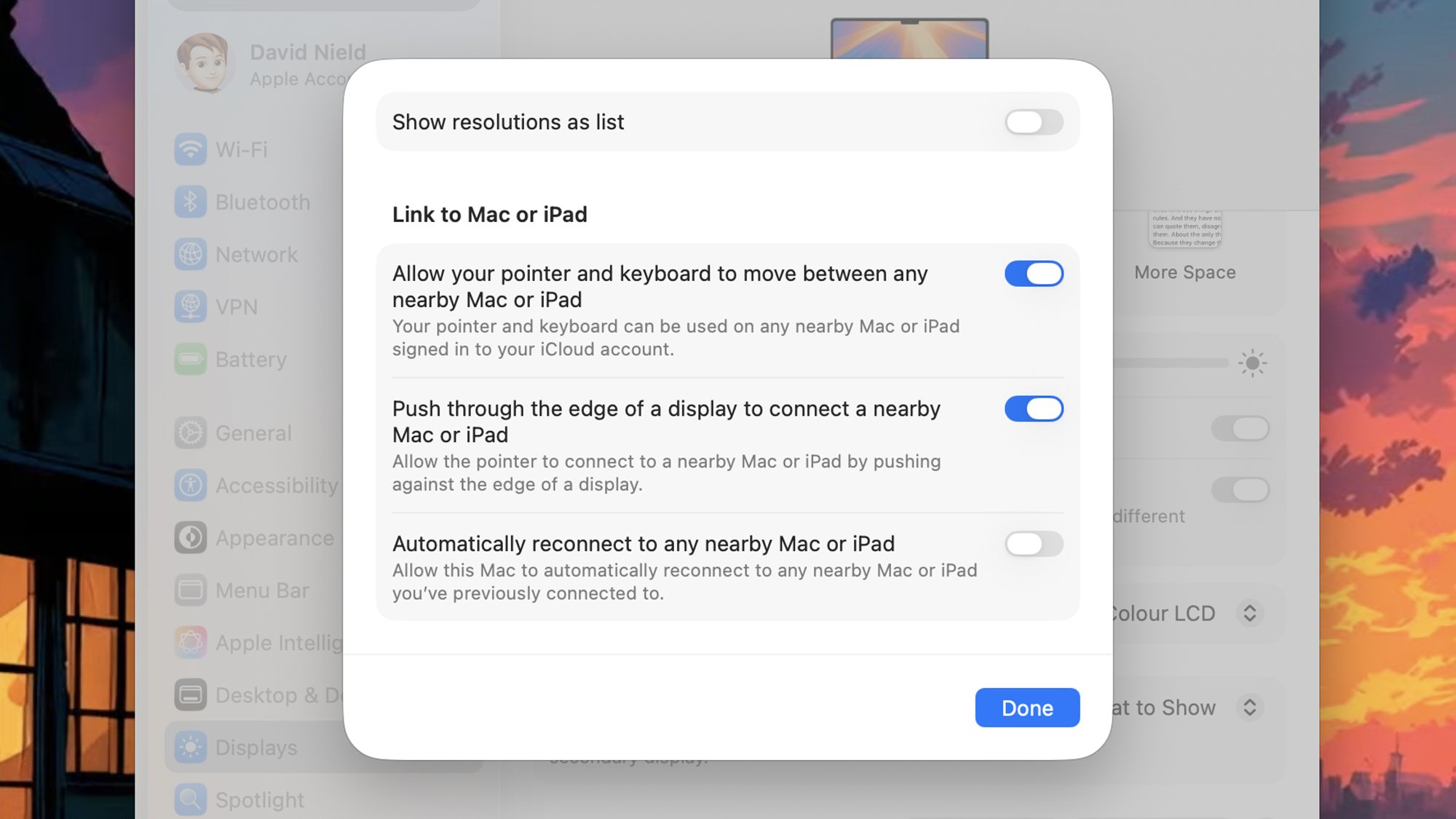
One of the key features of Mouse Without Borders is its ability to configure the layout of your virtual monitors. This is crucial for creating a natural and intuitive workflow. The application allows you to arrange your connected computers in a way that mirrors their physical arrangement on your desk. To switch between machines, simply drag your mouse cursor off the edge of one screen onto the next, as if you were using multiple monitors connected to a single computer. This seamless transition makes it feel like you’re working on a single, expansive desktop.
Beyond basic mouse and keyboard sharing, Mouse Without Borders also offers a few additional perks. It allows you to easily copy and paste files between connected computers, which can be a significant time-saver. It also supports file dragging, making it even easier to move documents and media between machines. However, it’s worth noting that Mouse Without Borders is exclusively a Windows solution. If you’re using macOS or Linux, you’ll need to explore alternative options.
2. Synergy: Cross-Platform Keyboard and Mouse Sharing
For users who operate across different operating systems, Synergy emerges as a robust and versatile solution to share your mouse and keyboard between multiple computers. Unlike Mouse Without Borders, Synergy is a cross-platform application, supporting Windows, macOS, and Linux. This makes it an ideal choice for individuals who work with a mix of devices or collaborate with teams that use different operating systems. If you’re setting up a new workstation, you might also want to consider how you will streamline software installations across all your machines.
Synergy operates on a client-server model. One computer acts as the “server,” hosting the mouse and keyboard, while the other computers act as “clients,” connecting to the server to share the peripherals. The setup process involves installing the Synergy software on each machine and configuring the server to recognize the clients. This typically involves specifying the IP addresses or hostnames of the client computers.

One of the key advantages of Synergy is its advanced configuration options. You can customize the screen layout to match your physical setup, defining the relative positions of your monitors. You can also configure hotkeys to quickly switch between computers, providing even faster access to different systems. Synergy also supports clipboard sharing, allowing you to copy and paste text and images between connected machines. Furthermore, Synergy offers encryption to protect your data when sharing between computers, a vital security feature for sensitive environments. If you’re a fan of premium audio while working, check out this deal on Bose QuietComfort Ultra headphones for an immersive experience.
While Synergy offers a wealth of features, it’s important to note that it’s a paid software. However, the cost is often justified by its cross-platform compatibility, advanced configuration options, and robust security features. For professionals and power users who need to seamlessly manage multiple computers across different operating systems, Synergy is a worthwhile investment.
3. Hardware KVM Switches: A Traditional Approach
For those who prefer a hardware-based solution, KVM (Keyboard, Video, Mouse) switches offer a reliable and straightforward way to share your mouse and keyboard between multiple computers. KVM switches have been around for many years and remain a popular choice for users who prioritize simplicity and hardware control.
A KVM switch is a physical device that connects to multiple computers and allows you to switch between them using a single set of peripherals. The switch typically has multiple input ports for connecting to the computers and output ports for connecting to the keyboard, mouse, and monitor. To switch between computers, you simply press a button on the switch or use a hotkey combination.
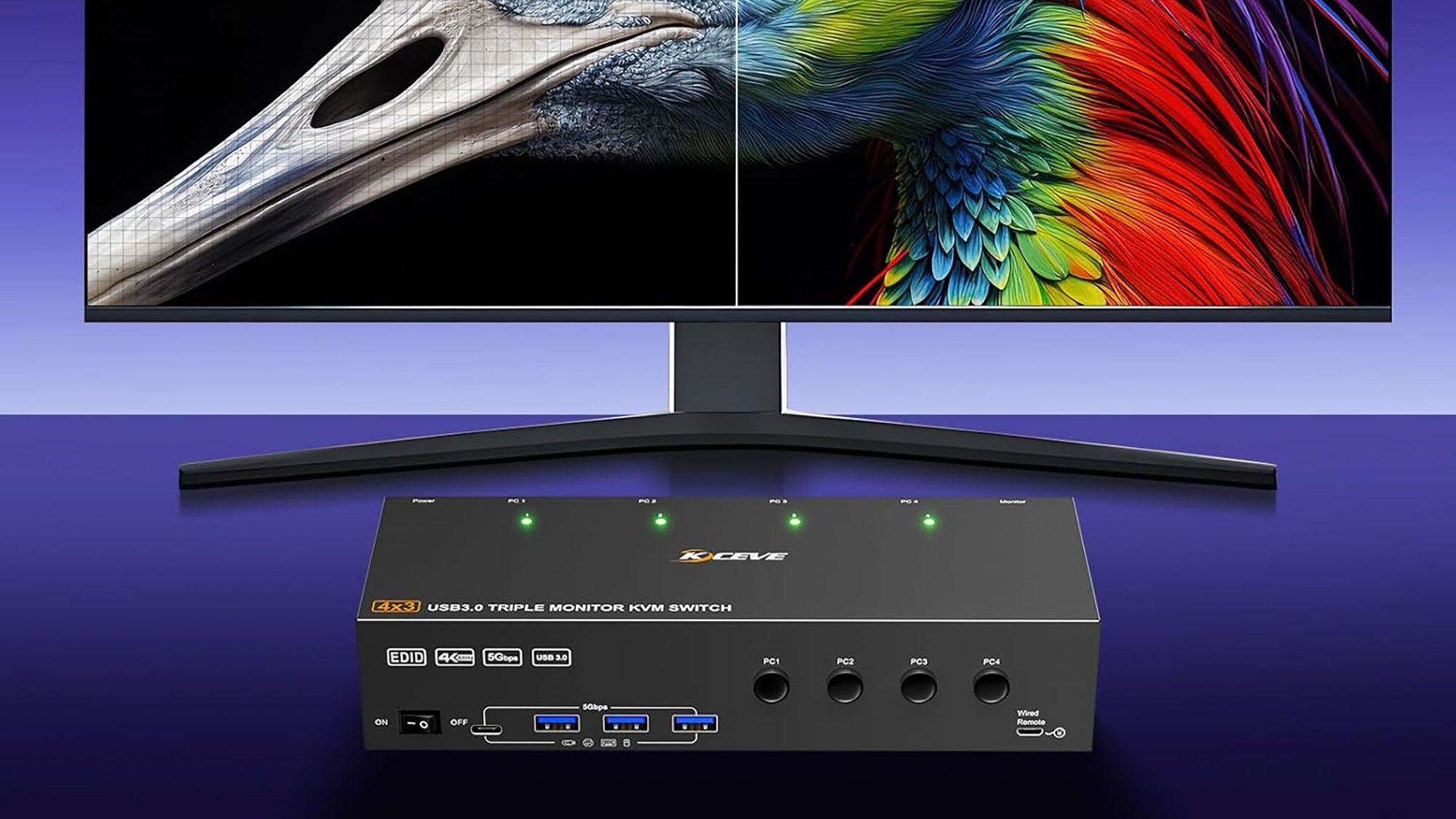
One of the main advantages of KVM switches is their hardware-based nature. This means that they don’t rely on software or network connectivity, making them a highly reliable solution. They also offer excellent compatibility, working with virtually any operating system and hardware configuration. KVM switches are available in various configurations, supporting different numbers of computers and video resolutions. Some advanced KVM switches even support features like USB device sharing and audio switching.
However, KVM switches also have some drawbacks. They require physical cabling, which can lead to a cluttered desk. They can also be more expensive than software-based solutions, especially for advanced models. Furthermore, KVM switches typically only support a limited number of computers, making them less suitable for users who need to manage a large number of machines. Consider also your home’s security; you might want to secure your garage with a MyQ smart video keypad.
4. Input Director: A Free Alternative for Windows Users
For Windows users seeking a free alternative to Mouse Without Borders, Input Director provides a compelling option to share your mouse and keyboard between multiple computers. Input Director is a lightweight and open-source application that allows you to control multiple Windows machines with a single set of peripherals.
Like Mouse Without Borders, Input Director operates on a client-server model. One computer acts as the “master,” hosting the mouse and keyboard, while the other computers act as “slaves,” connecting to the master to share the peripherals. The setup process is relatively straightforward, involving installing the Input Director software on each machine and configuring the master to recognize the slaves.
Input Director offers a range of features, including seamless mouse and keyboard switching, clipboard sharing, and hotkey support. It also allows you to configure screen layouts to match your physical setup. One of the unique features of Input Director is its ability to lock the mouse cursor to a specific screen, preventing accidental switching between computers. This can be particularly useful when working on tasks that require precise mouse control.
While Input Director is a free application, it’s important to note that it’s primarily designed for personal use. For commercial environments, it’s recommended to purchase a license. Input Director may also lack some of the advanced features found in paid solutions like Synergy. However, for basic mouse and keyboard sharing on Windows, Input Director provides a reliable and cost-effective solution.
5. Barrier: Open-Source and Cross-Platform
Barrier is an open-source and cross-platform software KVM solution that allows you to share your mouse and keyboard between multiple computers. Forked from the original Synergy 1.x code, Barrier aims to provide a free and open alternative with ongoing development and community support. It supports Windows, macOS, and Linux, making it a versatile option for users with diverse operating system environments.
Similar to Synergy, Barrier works on a client-server principle. You designate one machine as the server, which physically has the mouse and keyboard connected. The other machines act as clients, connecting to the server over the network. Once configured, you can move your mouse cursor off the edge of the server’s screen, and it will seamlessly appear on the client’s screen, allowing you to control it with the same mouse and keyboard.
Setting up Barrier involves installing the software on each computer and configuring the server with the screen names and relative positions of the clients. The configuration is typically done through a graphical interface, making it relatively easy for most users. Barrier also supports features like clipboard sharing, allowing you to copy and paste text and images between connected computers. Furthermore, it offers SSL encryption to secure the communication between the server and clients.
Because Barrier is open-source, it benefits from a large community of developers and users who contribute to its ongoing development and provide support. This means that you can often find solutions to problems and get help with configuration issues from online forums and communities. While Barrier may not have all the bells and whistles of commercial solutions like Synergy, it offers a solid and reliable way to share your mouse and keyboard between multiple computers, completely free of charge. If you enjoy using your MacBook, you might appreciate knowing more about how MacBooks edge light features are designed for perfect lighting.
Choosing the Right Solution to Share Your Mouse and Keyboard
Selecting the optimal method to share your mouse and keyboard between multiple computers hinges on your specific needs and technical proficiency. Consider the following factors when making your decision:
- Operating System Compatibility: If you’re exclusively using Windows, Mouse Without Borders or Input Director are excellent free options. For cross-platform support (Windows, macOS, Linux), Synergy or Barrier are more suitable.
- Budget: Mouse Without Borders, Input Director, and Barrier are free. Synergy requires a paid license. KVM switches involve a hardware purchase.
- Features: Synergy offers the most comprehensive feature set, including advanced configuration options, clipboard sharing, and encryption. KVM switches provide hardware-level control and compatibility.
- Technical Skill: Mouse Without Borders is the easiest to set up. Synergy and Barrier require more configuration. KVM switches are plug-and-play.
- Security: If security is a concern, Synergy and Barrier offer encryption. KVM switches provide inherent physical isolation.
Ultimately, the best solution is the one that best fits your individual requirements and preferences. Experiment with different options to find the perfect balance of features, cost, and ease of use. Whether you opt for a software-based solution or a hardware KVM switch, sharing your mouse and keyboard can significantly enhance your productivity and streamline your multi-computer workflow. For example, if you use Google Maps frequently, understanding the Google Maps power saving mode can be beneficial while managing multiple computers.