macOS Tahoe: Personalize Your Mac Like Never Before
macOS has always been known for its sleek design and user-friendly interface. However, when it comes to deep customization, it hasn’t always offered the same level of flexibility as some other operating systems. That’s changing with macOS Tahoe, the latest iteration of Apple’s desktop OS. If you’re eager to personalize your Mac’s look and feel, macOS Tahoe introduces exciting new ways to customize your Mac’s look, going beyond simple wallpaper changes. From tweaking app icons to personalizing the lock screen clock and the Control Center, there’s a lot to explore. Let’s dive into these customization options and discover how to make your Mac truly your own.
Tweak App Icons in the Dock for a Uniform Look
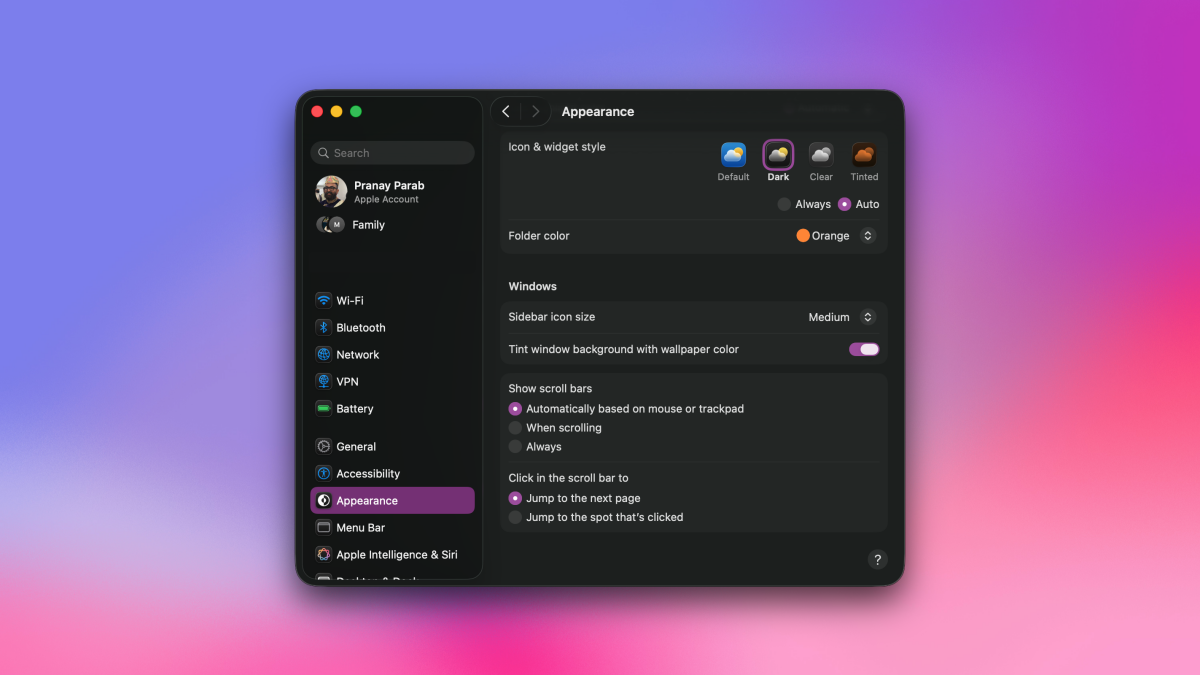
The Dock on your Mac is a central hub for accessing your favorite applications, and its collection of colorful icons can be visually appealing. However, if you prefer a more uniform and cohesive look, macOS Tahoe provides options to customize these icons. Whether you’re aiming for a consistent tint or want to embrace dark mode across all your apps, a simple tweak can achieve the desired effect. This feature provides a way to customize your Mac’s look to match your individual aesthetic.
To get started, click the Apple logo in the top-left corner of your screen and navigate to System Settings > Appearance > Icon & widget style. Here, you’ll find options to change the app icons to Dark, Clear, or Tinted. The Tinted option is particularly interesting, as it allows you to select a single color that will be applied to all your app icons. This can create a visually harmonious Dock that complements your wallpaper and overall desktop theme. Consider experimenting with different colors to find the one that best suits your taste. If you’re a fan of minimalism, a subtle gray or black tint can create a sophisticated and understated look.
For those who appreciate the vibrant colors of the original app icons but want a slightly different feel, the Clear option offers a more muted and transparent appearance. This can be a great way to reduce visual clutter and create a cleaner desktop environment. This is just one way to customize your Mac’s look.
Personalize the Lock Screen Clock Style
One of the first things you’ll notice after upgrading to macOS Tahoe is the redesigned clock on the lock screen. Apple has introduced new customization options that allow you to personalize its appearance, reflecting your individual style. This is another way to customize your Mac’s look.

To access these settings, go to System Settings > Wallpaper > Clock Appearance. Here, you’ll find a selection of six different clock styles to choose from. These styles range from classic analog designs to modern digital displays, offering something for every taste. Take some time to browse through the options and select the one that resonates with you the most.
In addition to choosing a clock style, you can also adjust the font weight using the slider below the Weight option. Increasing the font weight will make the clock appear bolder and more prominent, while decreasing it will create a sleeker and more subtle look. Experimenting with the font weight can significantly impact the overall appearance of the lock screen, allowing you to fine-tune it to your preferences. These customizations offer a unique way to customize your Mac’s look.
The ability to customize the lock screen clock is a small but significant addition to macOS Tahoe. It allows you to add a personal touch to your Mac’s interface, making it feel more like your own. By combining different clock styles with varying font weights, you can create a lock screen that is both functional and visually appealing.
Take Control of Your Control Center
The Control Center in macOS provides quick access to frequently used settings and features, such as Wi-Fi, Bluetooth, volume, and display brightness. In macOS Tahoe, Apple has enhanced the Control Center with new customization options, allowing you to tailor it to your specific needs and preferences. The enhanced Control Center is a great way to customize your Mac’s look for improved usability.

One of the key improvements is the ability to add, remove, and rearrange modules within the Control Center. This allows you to prioritize the settings and features that you use most often, making them easily accessible. To customize the Control Center, go to System Settings > Control Center. Here, you’ll see a list of available modules, such as Display, Sound, Wi-Fi, Bluetooth, and Do Not Disturb.
You can add a module to the Control Center by simply dragging it from the list of available modules to the desired location in the Control Center. To remove a module, drag it from the Control Center back to the list of available modules. You can also rearrange the modules within the Control Center by dragging them to different positions. This flexibility allows you to create a Control Center that is perfectly tailored to your workflow.
In addition to adding, removing, and rearranging modules, macOS Tahoe also introduces new modules to the Control Center. For example, you can now add a module for Screen Recording, allowing you to quickly start and stop screen recordings. Another useful addition is the Battery module, which provides detailed information about your Mac’s battery health and usage. By customizing the modules you can effectively customize your Mac’s look and improve functionality.
Dynamic Desktop Wallpapers: A Fresh Look Throughout the Day
macOS has long supported dynamic desktop wallpapers that change throughout the day, but macOS Tahoe takes this feature to the next level with enhanced options and greater flexibility. Dynamic wallpapers can add a touch of visual interest to your desktop, creating a more engaging and personalized experience. This feature is a key part of how to customize your Mac’s look.

To access the dynamic wallpaper settings, go to System Settings > Wallpaper. Here, you’ll find a selection of dynamic wallpapers to choose from, ranging from scenic landscapes to abstract designs. Each dynamic wallpaper is designed to change its appearance based on the time of day, creating a subtle but noticeable shift in the visual atmosphere of your desktop. For example, a landscape wallpaper might start with a sunrise in the morning, transition to a midday scene with bright sunlight, and then fade into a sunset in the evening. The dynamic wallpapers are a great way to customize your Mac’s look.
In macOS Tahoe, Apple has introduced new options for customizing the behavior of dynamic wallpapers. You can now choose between different dynamic modes, such as Light, Dark, and Dynamic. The Light mode keeps the wallpaper in its daytime appearance, while the Dark mode keeps it in its nighttime appearance. The Dynamic mode automatically adjusts the wallpaper based on the time of day, as in previous versions of macOS.
Another enhancement in macOS Tahoe is the ability to create your own dynamic wallpapers. You can now select a folder of images and configure macOS to automatically cycle through them throughout the day. This allows you to create a truly personalized dynamic wallpaper that reflects your interests and preferences. You can further customize your Mac’s look with custom dynamic wallpapers.
For instance, if you’re a photographer, you could create a dynamic wallpaper that showcases your best work. Or, if you’re a nature enthusiast, you could create a dynamic wallpaper that features stunning images of landscapes and wildlife. The possibilities are endless, allowing you to create a dynamic wallpaper that is uniquely your own.
Enhanced Accent Colors for a Unified Theme
Accent colors play a significant role in the overall look and feel of your Mac’s interface. They are used to highlight interactive elements, such as buttons, menus, and checkboxes, providing visual cues and enhancing the user experience. In macOS Tahoe, Apple has expanded the range of available accent colors and introduced new options for customizing their appearance. This allows you to create a more unified and visually appealing theme across your entire system. Accent colors provide a subtle way to customize your Mac’s look.
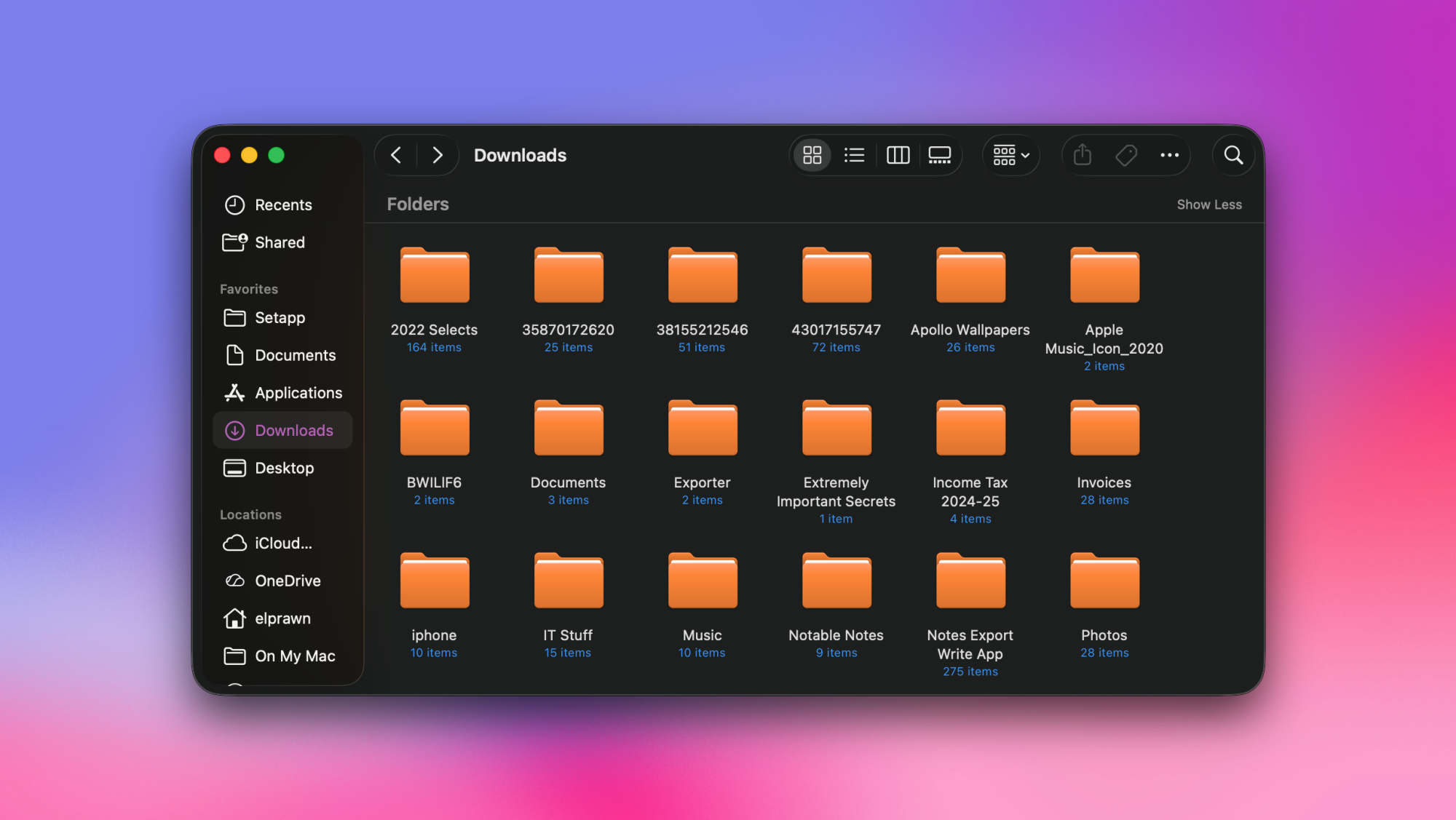
To customize the accent color, go to System Settings > Appearance > Accent color. Here, you’ll find a palette of predefined colors to choose from, ranging from classic shades like blue and green to more vibrant options like orange and pink. You can also select the “Other…” option to access a color picker, allowing you to choose any color you desire. This provides a virtually limitless range of possibilities, ensuring that you can find the perfect accent color to match your personal style.
In addition to choosing a color, macOS Tahoe also allows you to customize the intensity of the accent color. You can adjust the slider to make the accent color more subtle or more pronounced. This can be useful for creating a more harmonious look, especially if you’re using a custom accent color that is particularly bright or saturated.
Furthermore, macOS Tahoe introduces a new option to automatically adjust the accent color based on the wallpaper. When this option is enabled, macOS will analyze the colors in your wallpaper and automatically select an accent color that complements it. This can be a great way to create a cohesive and visually appealing theme without having to manually adjust the accent color yourself. This is yet another way to customize your Mac’s look.
Customize Safari with Ad Blocking for Enhanced Browsing
While not strictly a visual customization, improving your browsing experience also contributes to the overall feel of using your Mac. Safari in macOS Tahoe continues to offer robust support for ad blocking extensions, allowing you to browse the web without intrusive ads and trackers. A cleaner browsing experience adds to the overall experience of using your Mac. By blocking unwanted ads, you can enjoy faster page loading times, reduced data usage, and a more focused browsing experience. For comprehensive guidance on Safari ad blocking, see our detailed guide. This enhanced browsing experience is another way to customize your Mac’s look.
To install an ad blocking extension, open Safari and go to Safari > Safari Extensions. This will open the Mac App Store, where you can browse and install a variety of ad blocking extensions. Popular options include AdGuard, Ghostery, and 1Blocker. Once you’ve installed an ad blocking extension, be sure to enable it in Safari’s preferences. By blocking annoying ads, you can effectively customize your Mac’s look by cleaning up your browser view.
Beyond blocking ads, some extensions also offer additional privacy features, such as tracker blocking and script blocking. These features can help to protect your privacy online by preventing websites from tracking your browsing activity and collecting your personal data. Consider exploring these features to further enhance your browsing experience and protect your privacy. This is an indirect way to customize your Mac’s look.
The ability to customize Safari with ad blocking extensions is a powerful tool for improving your browsing experience and protecting your privacy. By blocking unwanted ads and trackers, you can enjoy a faster, cleaner, and more secure browsing experience. This contributes to the overall feeling of a customized and optimized system.
The Future of Mac Customization
macOS Tahoe represents a significant step forward in terms of customization options for Mac users. With its enhanced features for tweaking app icons, personalizing the lock screen clock, customizing the Control Center, and creating dynamic desktop wallpapers, macOS Tahoe empowers users to create a truly personalized and visually appealing computing experience. But what does the future hold for Mac customization? As technology advances, the possibilities are endless. One can only imagine more ways to customize your Mac’s look in the future.
One potential area of development is deeper integration with third-party theming engines. Currently, macOS offers limited support for theming, but future versions could allow users to install custom themes that completely overhaul the look and feel of the operating system. This would open up a whole new world of customization possibilities, allowing users to transform their Macs into truly unique and personalized devices. This would greatly expand how to customize your Mac’s look.
Another potential area of development is AI-powered customization. Imagine a future where macOS can automatically adapt its appearance based on your usage patterns, preferences, and even your mood. For example, if you’re working on a creative project, macOS could automatically switch to a vibrant and inspiring theme. Or, if you’re feeling stressed, macOS could switch to a calming and minimalist theme. AI-powered customization could take personalization to a whole new level, creating a truly adaptive and intuitive computing experience. The possibilities are endless for how to customize your Mac’s look with AI.
As Apple continues to innovate, we can expect to see even more exciting customization options in future versions of macOS. The ability to personalize your Mac is becoming increasingly important, as users seek to create computing experiences that are both functional and visually appealing. With macOS Tahoe, Apple has laid a solid foundation for the future of Mac customization, and we can’t wait to see what’s next.
Furthermore, the new 16-inch MacBook Pro offers even more screen real estate to showcase these customizations, making the visual enhancements even more impactful. The larger display allows for a more immersive and personalized experience, truly bringing your unique style to life. The larger screen allows users to better see all the ways they customize your Mac’s look.