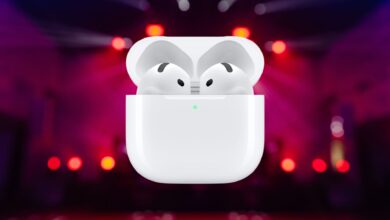
AirPods Audio Control: Master Bluetooth Speaker Connections
Tired of your Bluetooth speakers hijacking your AirPods audio at the most inconvenient times? You’re not alone. Many users experience the frustration of unwanted audio switching, especially when transitioning between devices like iPhones, iPads, and car speakers. This article provides a comprehensive guide on how to effectively manage your AirPods’ Bluetooth connections, particularly focusing on preventing unwanted disconnections and ensuring a seamless audio experience.

Understanding AirPods Bluetooth Behavior
AirPods are designed for convenience. Their automatic switching between Apple devices is a hallmark feature, powered by Handoff. This allows for a fluid transition of audio as you move from your Mac to your iPhone, or iPad. However, this convenience can sometimes become a nuisance when dealing with Bluetooth speakers. The default behavior often prioritizes connecting to available speakers, interrupting your AirPods audio without warning. Understanding the underlying mechanisms driving this behavior is the first step in regaining control.
The Automatic Switching Dilemma
The beauty of AirPods lies in their ability to seamlessly switch between devices. Imagine listening to music on your iPhone while walking to your car. As soon as you start your car, the audio unexpectedly shifts to your car’s Bluetooth speakers. While intended to be helpful, this automatic switching can be disruptive. This behavior stems from how iOS prioritizes available Bluetooth connections, often favoring newly detected devices over your already connected AirPods. The goal is to provide a hands-free experience, but the execution can be less than ideal.
Factors Influencing Bluetooth Connections
Several factors influence how your AirPods connect to Bluetooth devices. These include:
- Proximity: Devices in close proximity are more likely to connect automatically.
- Device Priority: iOS assigns priority to certain devices based on past connections and usage patterns.
- Bluetooth Version: Newer Bluetooth versions offer improved connection stability and range, but can also introduce compatibility issues.
- Software Settings: iOS settings, such as AirPlay & Handoff preferences, directly impact Bluetooth behavior.
Understanding these factors is crucial for tailoring your AirPods’ Bluetooth behavior to your specific needs. For example, if you frequently use a particular Bluetooth speaker, you might want to adjust its priority to prevent unwanted automatic connections.
Strategies to Prevent AirPods Disconnection From Bluetooth Speakers
Fortunately, there are several strategies you can implement to prevent your AirPods from unexpectedly disconnecting and switching to Bluetooth speakers. These range from simple setting adjustments to more advanced troubleshooting techniques.
Leveraging iOS Settings for Audio Control
Apple has introduced settings designed to give users more control over their AirPods’ Bluetooth behavior. One key setting is the “Keep Audio with Headphones” option, which can be found in recent iOS versions. This setting specifically addresses the issue of unwanted audio switching to external speakers.
To access this setting:
- Open the Settings app on your iPhone.
- Navigate to General.
- Tap on AirPlay & Handoff (or Continuity).
- Enable the Keep Audio with Headphones setting.
By enabling this setting, you instruct your iPhone to prioritize your AirPods for audio playback, preventing automatic switching to other available Bluetooth speakers. It’s a simple yet effective solution for maintaining consistent audio control.
Managing Bluetooth Device Connections Manually
Another effective strategy is to manually manage your Bluetooth device connections. This involves actively disconnecting from unwanted Bluetooth speakers when they are not in use. While this might seem like a tedious task, it provides the most direct control over your AirPods’ audio output.
To manually disconnect from a Bluetooth device:
- Open the Settings app on your iPhone.
- Tap on Bluetooth.
- Locate the Bluetooth speaker you want to disconnect from.
- Tap the “i” icon next to the speaker’s name.
- Select Disconnect.
By disconnecting from unwanted Bluetooth speakers, you ensure that your AirPods remain the primary audio output device. You can also choose to “Forget This Device” if you no longer intend to use the speaker with your iPhone. This prevents automatic reconnection in the future. This can be especially useful in environments with many Bluetooth devices, such as offices or public spaces. For instance, you might choose to “Forget This Device” for a conference room speaker that you only occasionally use.
Utilizing Control Center for Quick Audio Switching
Even with the “Keep Audio with Headphones” setting enabled, there might be times when you want to manually switch your audio to a Bluetooth speaker. The Control Center provides a quick and convenient way to do this.
To switch audio output using Control Center:
- Open Control Center on your iPhone (swipe down from the top-right corner of the screen).
- Tap the AirPlay icon (it looks like a triangle with circles).
- Select the desired audio output device (e.g., your Bluetooth speaker).
This allows you to easily switch between your AirPods and other Bluetooth speakers as needed, without having to delve into the Settings app. It’s a versatile solution for managing audio output on the fly. You can even use this method to switch audio to multiple speakers simultaneously, creating a surround sound experience.
Troubleshooting Common Bluetooth Connectivity Issues
Despite your best efforts, you might still encounter occasional Bluetooth connectivity issues. These can range from intermittent disconnections to complete inability to connect. Here are some common troubleshooting steps you can take:
- Restart Your Devices: A simple restart can often resolve temporary glitches. Restart both your iPhone and the Bluetooth speaker.
- Check Bluetooth Range: Ensure that your AirPods and the Bluetooth speaker are within the recommended Bluetooth range (typically around 30 feet).
- Update iOS: Make sure your iPhone is running the latest version of iOS. Software updates often include bug fixes and improvements to Bluetooth connectivity.
- Reset Network Settings: Resetting your iPhone’s network settings can resolve underlying network-related issues that might be affecting Bluetooth. Go to Settings > General > Transfer or Reset iPhone > Reset > Reset Network Settings.
- Unpair and Re-pair: Unpairing and re-pairing your AirPods with your iPhone can sometimes resolve connectivity problems.
- Check for Interference: Other electronic devices, such as microwaves and Wi-Fi routers, can interfere with Bluetooth signals. Try moving away from these devices.
By systematically troubleshooting potential issues, you can often restore stable Bluetooth connectivity and prevent unwanted disconnections.
Advanced Bluetooth Management Techniques
For users seeking even greater control over their AirPods’ Bluetooth behavior, there are some advanced techniques that can be employed.
Using Shortcuts for Customized Bluetooth Automation
The Shortcuts app on iOS allows you to create custom automation workflows. You can use Shortcuts to automate Bluetooth connection and disconnection tasks, tailoring your AirPods’ behavior to specific scenarios. For example, you could create a shortcut that automatically disconnects from all Bluetooth speakers when you arrive at home, ensuring that your AirPods remain the primary audio output device.
To create a Bluetooth automation shortcut:
- Open the Shortcuts app on your iPhone.
- Tap the Automation tab.
- Tap Create Personal Automation.
- Choose a trigger (e.g., “Arrive” at a location).
- Add an action to Disconnect Bluetooth.
With Shortcuts, you can create a wide range of custom Bluetooth automation workflows, optimizing your AirPods’ behavior for various situations. You could even create a shortcut that automatically connects to a specific Bluetooth speaker when you open a particular app, such as a music streaming service.
Exploring Third-Party Bluetooth Management Apps
While iOS provides built-in Bluetooth management features, third-party apps can offer additional functionality and customization options. These apps often provide more granular control over Bluetooth connections, allowing you to prioritize specific devices, manage connection profiles, and troubleshoot connectivity issues. Some popular Bluetooth management apps include Bluetooth Auto Connect and Bluetooth Smart Connect.
When choosing a third-party Bluetooth management app, be sure to consider its features, user reviews, and security reputation. It’s important to select an app from a reputable developer to ensure that your data is protected.
Understanding Bluetooth Profiles and Compatibility
Bluetooth devices use different profiles to communicate with each other. Understanding these profiles can help you troubleshoot compatibility issues and optimize your AirPods’ Bluetooth performance. Some common Bluetooth profiles include:
- A2DP (Advanced Audio Distribution Profile): Used for streaming high-quality audio.
- HFP (Hands-Free Profile): Used for making and receiving phone calls.
- AVRCP (Audio/Video Remote Control Profile): Used for controlling audio playback.
If you’re experiencing compatibility issues with a particular Bluetooth speaker, check its supported profiles to ensure that they are compatible with your AirPods. You can usually find this information in the speaker’s user manual or on the manufacturer’s website.
Real-World Scenarios and Case Studies
To illustrate the practical application of these techniques, let’s consider some real-world scenarios and case studies.
Scenario 1: The Commuter’s Dilemma
A commuter uses AirPods to listen to podcasts during their daily train ride. However, as they approach their office, their AirPods keep disconnecting and connecting to various Bluetooth devices in the vicinity, disrupting their listening experience. By enabling the “Keep Audio with Headphones” setting and manually disconnecting from unwanted Bluetooth devices, the commuter can maintain a stable audio connection throughout their journey. They can also use a Shortcut to automatically disconnect from all Bluetooth devices when they arrive at their office.
Scenario 2: The Home Entertainment Setup
A user has a home entertainment setup with multiple Bluetooth speakers. They want to be able to easily switch between their AirPods and the speakers, depending on the situation. By using Control Center, they can quickly switch between audio outputs without having to delve into the Settings app. They can also create Shortcuts to automate the connection to specific speakers when they launch certain apps, such as their TV streaming service.
Scenario 3: The Fitness Enthusiast’s Challenge
A fitness enthusiast uses AirPods while working out at the gym. However, their AirPods keep disconnecting and connecting to various gym equipment, interrupting their music playback. By manually disconnecting from unwanted Bluetooth devices and using a third-party Bluetooth management app to prioritize their AirPods, the fitness enthusiast can maintain a stable audio connection throughout their workout. They can also use a Shortcut to automatically connect to their favorite workout playlist when they connect their AirPods.
These scenarios demonstrate how the techniques discussed in this article can be applied to real-world situations to improve the AirPods’ Bluetooth experience.
The Future of AirPods and Bluetooth Connectivity
As technology evolves, we can expect further advancements in AirPods and Bluetooth connectivity. Future iterations of iOS might include more sophisticated Bluetooth management features, allowing for even greater customization and control. We might also see the integration of artificial intelligence to predict and optimize Bluetooth connections based on user behavior. The future iPhone 17 could have even more impressive features.
Furthermore, the development of new Bluetooth standards, such as Bluetooth LE Audio, promises to deliver improved audio quality, lower power consumption, and enhanced multi-device connectivity. These advancements will further enhance the AirPods’ capabilities and provide a more seamless and immersive audio experience.
The ongoing evolution of Bluetooth technology and iOS software will undoubtedly bring new and innovative ways to manage AirPods’ Bluetooth connections, making it easier than ever to enjoy a seamless audio experience.
Conclusion: Taking Control of Your AirPods Audio Experience
By implementing the strategies outlined in this article, you can effectively manage your AirPods’ Bluetooth connections and prevent unwanted disconnections from Bluetooth speakers. Whether it’s leveraging iOS settings, manually managing connections, or utilizing advanced techniques like Shortcuts and third-party apps, you have the power to take control of your audio experience. Don’t let unwanted Bluetooth connections disrupt your listening pleasure. Master your AirPods’ Bluetooth settings and enjoy a seamless and uninterrupted audio experience, whether you’re commuting, working out, or relaxing at home. Consider how these techniques could also apply to the upcoming iPhone Air, ensuring consistent audio connectivity across all your devices.
Remember to regularly update your iOS software and explore new Bluetooth management features as they become available. The ongoing development of Bluetooth technology and iOS software will continue to provide new and innovative ways to optimize your AirPods’ audio experience. Enjoy the freedom and flexibility of wireless audio without the frustration of unwanted disconnections. You might also be interested in the new features of the Apple iPhone 17 Pro Max, which could further enhance your audio experience.
Frequently Asked Questions (FAQ)
| What is the main topic of this article? |
This article provides comprehensive information about managing AirPods’ Bluetooth connections to prevent unwanted disconnections from Bluetooth speakers and covers all related aspects in detail. |
| Where can I find more detailed information? |
Additional information and resources are available through the internal links provided throughout the article. You can also check the references section for more sources. |
| How current is this information? |
This article contains up-to-date information relevant to current iOS versions and Bluetooth technology. We regularly update our content to ensure accuracy. |
| Who is this article intended for? |
This article is designed for AirPods users seeking comprehensive understanding of how to manage their Bluetooth connections, from beginners to advanced learners. It covers both basic settings and advanced techniques. |
| Are there any important updates I should know about? |
Yes, we regularly monitor iOS updates and Bluetooth technology developments and update our content accordingly. Check the publication date and any update notices for the most current information. The latest iOS updates often include improvements to Bluetooth connectivity. |
Important Notice
This content is regularly updated to ensure accuracy and relevance for our readers. If you have any questions, feel free to contact us.
Content Quality: This article has been carefully researched and written to provide valuable insights and practical information. Our team works hard to maintain high standards. We hope this article helps you to manage your AirPods and Bluetooth connections effectively, much like the advanced technology found in the Ford Mustang.