Samsung Galaxy A30: Unveiling Key Features & Specs
The Samsung Galaxy A30 was a popular mid-range smartphone, offering a blend of features and affordability. Understanding its Samsung Galaxy A30 characteristics is crucial for anyone considering purchasing a used model or simply wanting to learn more about this device. This article provides a detailed overview of the Galaxy A30’s specifications, design, performance, camera capabilities, and more. It will help you determine if this phone still holds up in today’s market or if there are better alternatives available.
Design and Display: A Visual Delight
The Samsung Galaxy A30 boasts a sleek and modern design. Its dimensions are approximately 158.5 x 74.7 x 7.7 mm, making it comfortable to hold and use. The phone features a polycarbonate (plastic) back, which contributes to its lightweight feel. The glossy finish gives it a premium look, although it can be prone to fingerprints.
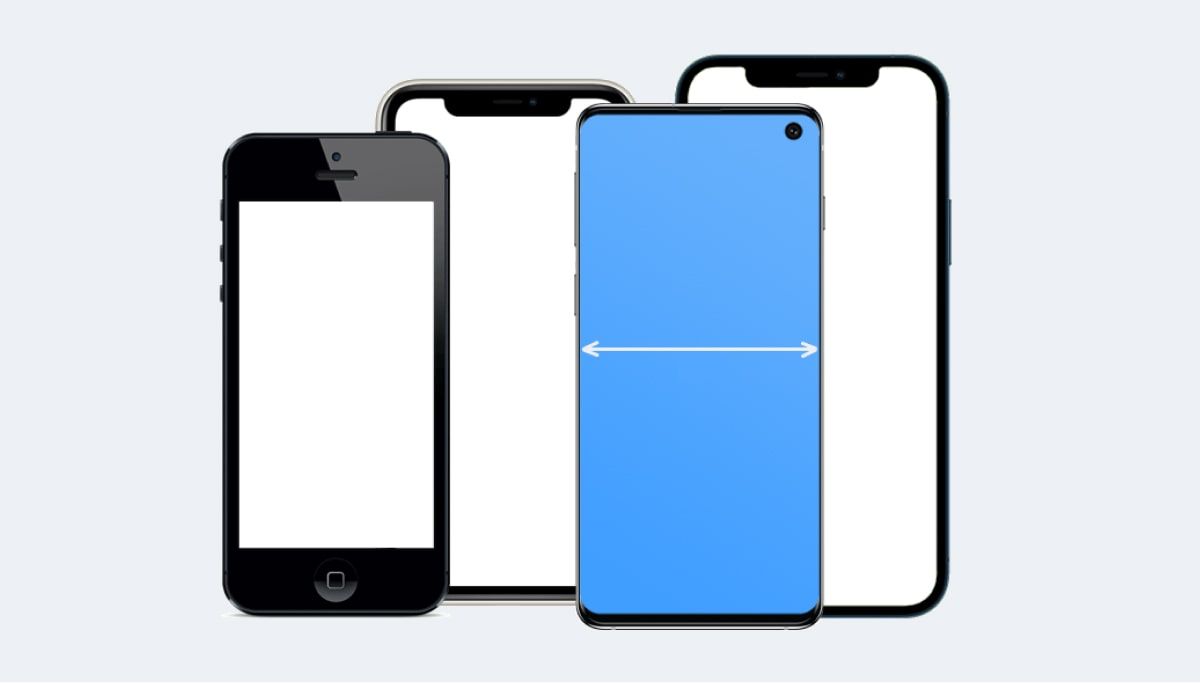
The display is a 6.4-inch Super AMOLED screen with a resolution of 1080 x 2340 pixels. This Full HD+ resolution results in a pixel density of around 403 ppi, delivering sharp and vibrant visuals. The Super AMOLED technology ensures excellent color accuracy, deep blacks, and wide viewing angles. The screen also features a waterdrop notch at the top, housing the front-facing camera. This design maximizes the screen real estate, providing an immersive viewing experience for multimedia consumption and gaming. The viewport resolution, vital for designers and developers, is 412 pixels in width and 892 pixels in height, influencing breakpoints and media query definitions.
Performance and Hardware: Smooth and Efficient
Under the hood, the Samsung Galaxy A30 is powered by the Exynos 7904 chipset. This is an octa-core processor with two Cortex-A73 cores clocked at 1.8 GHz and six Cortex-A53 cores clocked at 1.6 GHz. This configuration provides a balance between performance and power efficiency. The phone comes with either 3GB or 4GB of RAM, depending on the variant, which allows for smooth multitasking and app switching. The internal storage is either 32GB or 64GB, which can be expanded via a microSD card up to 512GB. This ensures ample space for storing photos, videos, and other files.
The Exynos 7904 chipset is capable of handling everyday tasks with ease. It can smoothly run social media apps, web browsers, and video streaming services. While it may not be the most powerful processor on the market, it is sufficient for most users. The phone also includes a Mali-G71 MP2 GPU, which provides decent graphics performance for casual gaming. However, demanding games may experience some lag or frame rate drops.
For users considering other Samsung devices, it’s worth comparing the A30 with models like the Samsung Galaxy A50s, which offers enhanced features and performance. Understanding the Samsung Galaxy A30 characteristics in comparison to other models helps in making an informed decision.
Camera Capabilities: Capturing Memories
The Samsung Galaxy A30 features a dual-camera setup on the rear. The primary camera is a 16MP sensor with an aperture of f/1.7, which allows for decent low-light performance. The secondary camera is a 5MP ultra-wide lens with an aperture of f/2.2, which enables you to capture wider scenes and landscapes. The camera app offers various modes, including panorama, HDR, and live focus (portrait mode).
The image quality from the main camera is generally good, especially in well-lit conditions. The photos are sharp, with vibrant colors and a decent amount of detail. The dynamic range is also quite good, thanks to the HDR mode. In low-light conditions, the image quality deteriorates, with noticeable noise and loss of detail. However, the f/1.7 aperture helps to capture more light, resulting in brighter images.
The ultra-wide lens is a useful addition, allowing you to capture wider scenes and landscapes. However, the image quality from this lens is not as good as the main camera, with noticeable distortion and softer details. The front-facing camera is a 16MP sensor with an aperture of f/2.0, which captures decent selfies. The camera app also offers various beauty modes and filters.
Battery Life: Powering Your Day
The Samsung Galaxy A30 is equipped with a 4,000mAh battery, which provides excellent battery life. With moderate usage, you can easily get through a full day on a single charge. Even with heavy usage, such as gaming and video streaming, the phone can last for several hours. The phone also supports 15W fast charging, which allows you to quickly top up the battery. It takes approximately 2 hours to fully charge the phone from 0% to 100%.
The battery life is one of the strongest aspects of the Samsung Galaxy A30. The combination of the power-efficient Exynos 7904 chipset and the large battery capacity ensures that you can use the phone for extended periods without worrying about running out of power. The fast charging support is also a welcome addition, allowing you to quickly recharge the battery when needed.
Software and Features: User-Friendly Experience
The Samsung Galaxy A30 runs on Android 9.0 Pie with Samsung’s One UI on top. One UI is a user-friendly interface that is designed to be easy to use and navigate. It features a clean and modern design, with large icons and intuitive menus. The software also includes various features, such as dark mode, gesture navigation, and Bixby (Samsung’s virtual assistant). One UI is well-optimized for the hardware, providing a smooth and responsive user experience.
Samsung also provides regular software updates for the Galaxy A30, ensuring that the phone remains secure and up-to-date with the latest features. The phone also includes various pre-installed apps, such as Samsung Health, Samsung Pay, and Galaxy Store. These apps provide additional functionality and services. The density of pixel on the Samsung Galaxy A30 is 2.625, which can be targeted in CSS media queries for specific device optimizations.
Connectivity and Other Features
The Samsung Galaxy A30 supports various connectivity options, including 4G LTE, Wi-Fi 802.11 a/b/g/n/ac, Bluetooth 5.0, GPS, and USB Type-C. It also includes a 3.5mm headphone jack, which is a welcome addition for those who prefer to use wired headphones. The phone features a rear-mounted fingerprint sensor, which is fast and accurate. It also supports face unlock, which provides an alternative method of unlocking the phone.
The phone also includes various sensors, such as accelerometer, gyroscope, proximity sensor, and compass. These sensors provide additional functionality for apps and games. The Samsung Galaxy A30 also supports NFC (Near Field Communication), which allows you to make contactless payments and transfer data.
Comparing with Other Samsung Models
When considering the Samsung Galaxy A30 characteristics, it’s beneficial to compare it with other models in the Samsung Galaxy A series. For instance, the Samsung Galaxy A70s offers a larger display, more powerful processor, and higher resolution camera. However, it also comes at a higher price point. Similarly, the Samsung Galaxy A71 provides further upgrades in terms of performance and camera capabilities. Evaluating these options can help you determine which phone best suits your needs and budget.
Pros and Cons of the Samsung Galaxy A30
Here’s a summary of the pros and cons of the Samsung Galaxy A30:
Is the Samsung Galaxy A30 Still Worth Buying?
The Samsung Galaxy A30 was a solid mid-range smartphone when it was released. However, in today’s market, there are many newer smartphones that offer better performance, camera capabilities, and features at a similar price point. If you are looking for a budget-friendly smartphone with a good display and battery life, the Galaxy A30 may still be a decent option, especially if you can find it at a discounted price. However, if you are looking for the best possible performance and camera quality, you may want to consider other options.
The device’s viewport resolution of 412 x 892 pixels remains a key detail for developers optimizing websites for mobile viewing. Comparing the Samsung Galaxy A30 characteristics with newer models is crucial for making an informed buying decision. For users also interested in wearables, it’s worth exploring the features and benefits of devices like the Apple Watch SE 3 44mm.
Alternative Titles
- Galaxy A30 Specs: A Deep Dive into Features
- Samsung A30: Performance, Camera & Design Review
Conclusion
In conclusion, while the Samsung Galaxy A30 offered a compelling package at its launch, advancements in smartphone technology mean there are now better options available. Understanding the Samsung Galaxy A30 characteristics allows you to make an informed decision based on your specific needs and budget. Consider exploring newer models to ensure you get the best possible performance and features for your money. Even with its limitations, the Galaxy A30 remains a testament to Samsung’s commitment to providing quality devices at various price points.
For users looking for great deals on other Apple products, see our article on unbeatable early Black Friday MacBook Air deals.