MacOS Makeover: Unleash Hidden Customization Power!
Let’s be honest, MacOS is slick. It’s reliable. It just *works*. But sometimes, “just works” can feel a little…vanilla, right? I remember back in 2010, I was so excited to get my first MacBook Pro, but after a few months, I was itching to personalize it. I was coming from years of tweaking Windows XP, and MacOS felt a bit…restrictive. While Apple has always prioritized simplicity and a streamlined user experience, that often comes at the expense of deep customization. But fear not, fellow Mac users! There are ways to bend the rules a little and inject some personality into your digital workspace. It’s not always obvious, and it definitely doesn’t come built-in, but with a few clever tools, you can make your Mac truly your own.
Spice Up Your Cursor with Mousecape
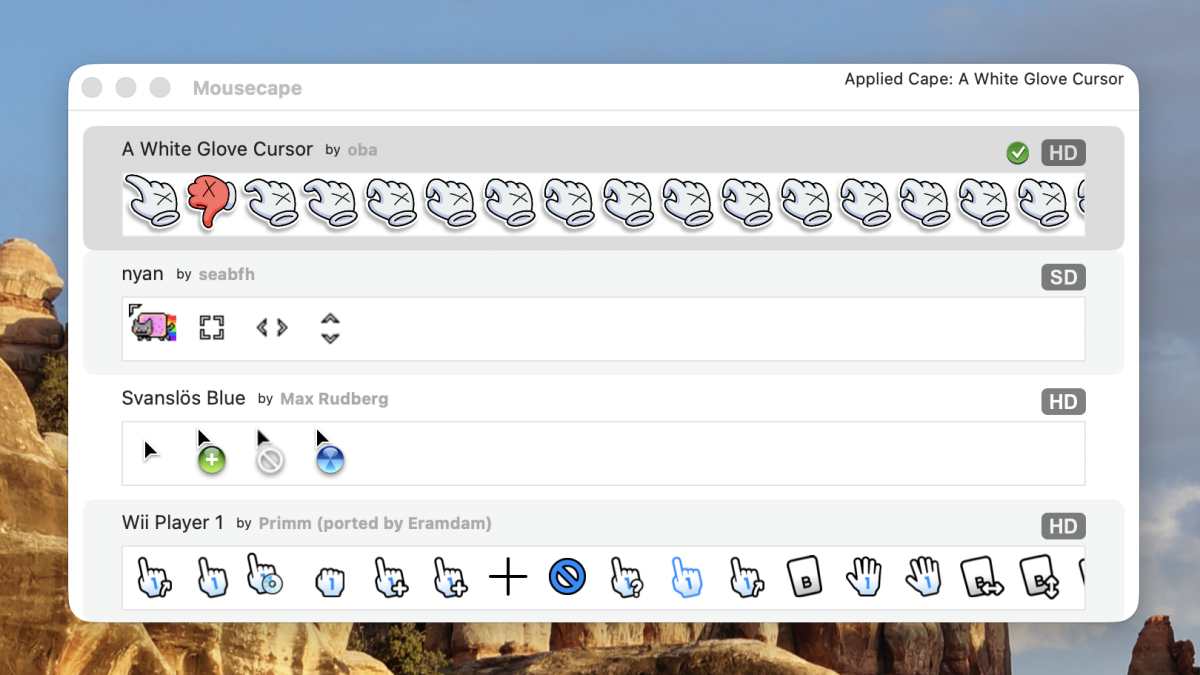
Changing your mouse cursor on Windows? Easy peasy. On MacOS? Not so much. Apple gives you precisely *one* option: size. That’s it. Kind of baffling, isn’t it? Why limit such a simple customization? Well, that’s where Mousecape comes in. This free, open-source application is a lifesaver if you’re tired of the same old pointer. It lets you create your own custom cursors or, even better, install cursors made by other people. Think about it: a lightsaber cursor! Or maybe a tiny dancing banana! The possibilities are endless.
Finding cursors in my experience can be a bit of a treasure hunt. There isn’t a central repository, which is a shame, but a quick search turns up some gems. I stumbled upon a cool “hand” cursor on GitHub, some nostalgic Wii cursors (remember those?), and a decent collection on DeviantArt. I even spent an afternoon trying to design my own pixel-art cursor – let’s just say my artistic skills are better suited to coding! If you’re feeling creative, give it a shot. What’s the worst that could happen?
critical Note: If you’re running the latest MacOS Tahoe (as of late 2025), you’ll need to grab an updated fork of Mousecape. The main build seems to be a bit behind the times. Make sure to download the pre-release version; it worked like a charm for me. Speaking of updating, did you know you can finally see your Mac’s clipboard history in Spotlight? It’s a game-changer. Here’s a complete guide if you’re interested.
Pros of Mousecape:
- Completely free and open source – can’t beat that!
- Huge potential for personalization.
- Relatively easy to use, even for beginners.
Cons of Mousecape:
- Finding custom cursors requires some digging.
- Requires a forked version for the latest MacOS.
- Some cursors might not be high-resolution, leading to a pixelated look.
Turn Any Website into a Dynamic Wallpaper with Plash
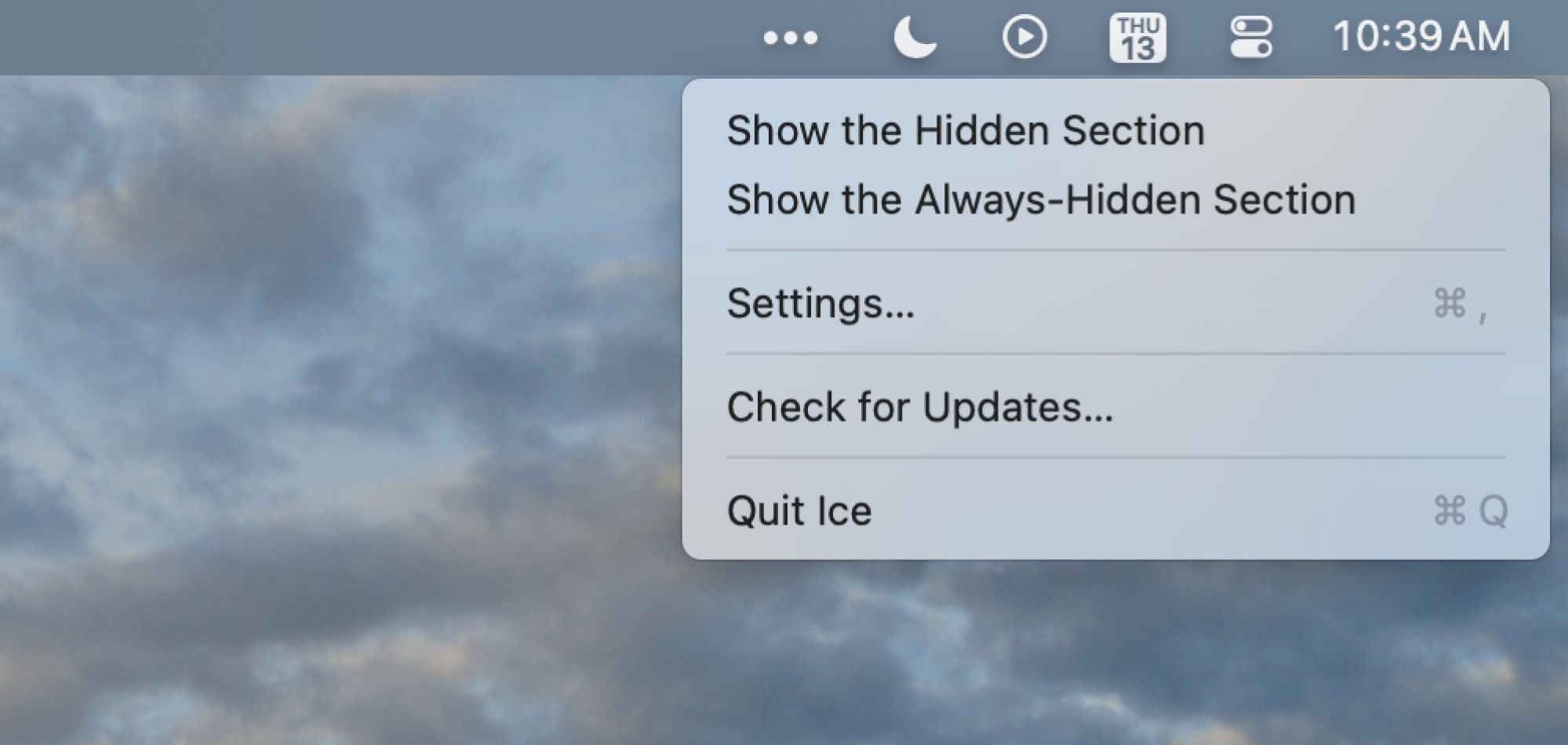
I have to say, MacOS has some decent wallpapers, including the dynamic ones that change throughout the day. You can even use your own photos. But what if you want something truly unique? Something…interactive? Enter Plash. This little gem lets you turn *any* website into your desktop wallpaper. Seriously. Think about the possibilities! Want to stare out of a random stranger’s window? There’s a website for that. Want real-time weather data constantly displayed behind your icons? Plash can do it. Fancy some animated pixel art to brighten your day? You got it. It’s seriously addictive.
I spent a good hour last week cycling through different websites as my wallpaper. I even had a live cryptocurrency tracker running for a while (until the constant fluctuations stressed me out!). One of my favorites is a website that displays a constantly updating map of global wind patterns. It’s mesmerizing. Have you ever tried customizing your shopping experience with AI? Google’s AI shopping genius might be something to look into.
Pros of Plash:
- Opens up a world of interactive and dynamic wallpapers.
- Easy to set up and use.
- Free!
Cons of Plash:
- Can be resource-intensive depending on the website you use.
- Some websites might not be optimized for wallpaper use.
- Potential for distraction (especially with news tickers!).
Tweak Your Menu Bar with Bartender (Okay, This One Costs)
In my honest opinion, Okay, this isn’t a freebie, but hear me out. Bartender is a paid application that I’ve been using for *years*, and it’s worth every penny. If you’re like me, your menu bar is probably overflowing with icons. Seriously, it’s a cluttered mess up there. Bartender lets you tidy things up by hiding icons you don’t need to see all the time. You can then access them via a small Bartender icon, or even set them to appear automatically when they update. It’s a simple idea, but it makes a huge difference in terms of organization and focus. It’s one of those apps that, once you use it, you can’t imagine living without it. I actually missed it terribly when I switched to a new Mac and hadn’t reinstalled it yet. It felt like my brain was cluttered, too!
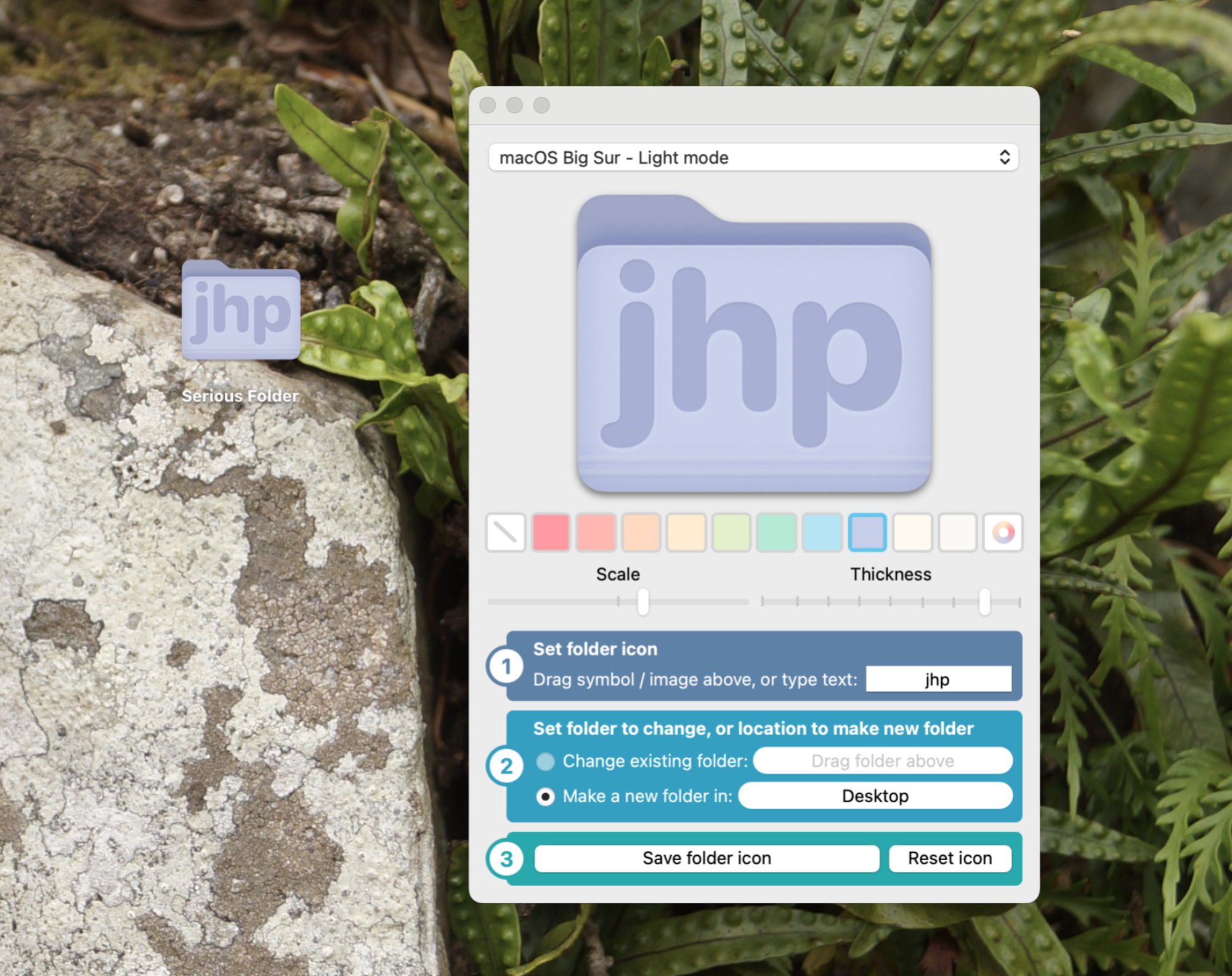
I use Bartender to hide things like my Dropbox icon, Bluetooth icon, and various app-specific icons that I don’t need to see constantly. It makes my menu bar clean and focused, which helps me concentrate on the task at hand. I can still access those icons with a click, but they’re out of sight, out of mind until I need them. Maybe it’s time for a new gaming headset? You can get a Dragon G3X Ultra on sale!
Pros of Bartender:
- Significantly declutters your menu bar.
- Improves focus and reduces distractions.
- Highly customizable.
Cons of Bartender:
- It’s a paid application.
- Some users might find the initial setup a bit confusing.
- Can be overkill if you don’t have a lot of menu bar icons.
Revamp Your Dock with Custom Icons (and a Little Imagination)
While MacOS doesn’t offer built-in options for *radically* changing the dock’s appearance, you can still customize it quite a bit. The easiest way is to replace the default icons with custom ones. There are tons of free icon packs available online. A quick search for “MacOS icon pack” will give you more options than you can shake a stick at. You can find everything from minimalist icons to retro icons to icons that mimic other operating systems. The process of changing icons is a bit fiddly (you have to right-click the app in Finder, select “Get Info,” and then drag the new icon onto the existing one), but it’s worth it if you want a truly unique look. I recently saw someone with a completely monochrome dock, and it looked incredibly sleek.
Beyond icon replacement, you can also adjust the dock’s size, position, and behavior. You can make it smaller to save screen space, move it to the left or right side of the screen, or even set it to automatically hide when not in use. These are all simple changes, but they can have a big impact on your overall user experience. Speaking of user experience, Spotify’s new AI-powered audiobook recaps are pretty neat. They’ll remind you where you left off!
Pros of Dock Customization:
- Relatively easy to implement.
- Tons of free icon packs available.
- Can significantly change the look and feel of your dock.
Cons of Dock Customization:
- Changing icons in my experience can be a bit tedious.
- Some icon packs might not be high-quality.
- Requires some time and effort to find the perfect icons.
Beyond the Basics: Diving Deeper into MacOS Customization
These four methods are just the tip of the iceberg when it comes to customizing MacOS. If you’re feeling adventurous, you can explore more advanced options like using third-party theming tools (be careful with these!), modifying system files (proceed with caution!), or even writing your own custom scripts. But for most users, the tools I’ve mentioned above will provide plenty of ways to personalize their Mac and make it feel truly unique. It’s all about finding what works for you and creating a digital workspace that inspires you. I recently read about the Honor Magic8 Pro, and I was impressed with its camera capabilities. It’s definitely worth checking out if you’re a photography enthusiast.
Final Thoughts: Making MacOS Your Own
Customizing MacOS isn’t about making it “better” than the default experience. It’s about making it *yours*. It’s about creating a digital environment that reflects your personality, your preferences, and your workflow. And while Apple might not make it easy, it’s definitely possible to inject some individuality into your Mac. So, go ahead, experiment a little! Try out some different cursors, wallpapers, and icon packs. Tidy up your menu bar with Bartender. You might be surprised at how much of a difference it makes. After all, shouldn’t your computer feel like *your* computer?