Mac Backup Strategy: Why Time Machine Still Matters
Losing important data, whether it’s crucial work documents or irreplaceable family photos, can be a devastating experience. While cloud storage solutions like iCloud offer a degree of protection, relying solely on them can be risky. Users can sometimes face account lockouts, making file retrieval impossible. Furthermore, iCloud doesn’t automatically back up everything on your Mac. System settings, applications, and custom configurations are not easily recoverable if something goes wrong. That’s why having a robust, local backup solution, like Time Machine for Mac, remains essential.
A local backup offers several advantages over cloud-only solutions. Firstly, restoring files from a local backup is significantly faster than downloading them from the cloud, particularly when dealing with large files like videos or extensive photo libraries. Secondly, having control over your backup provides peace of mind, knowing that your data is safe and accessible even without an internet connection or reliance on a third-party company. Considering these factors, implementing a comprehensive backup strategy that includes a local backup is a smart move for any Mac user. Let’s delve into why Time Machine continues to be a top choice for many.
The Enduring Appeal of Time Machine for Mac Backups
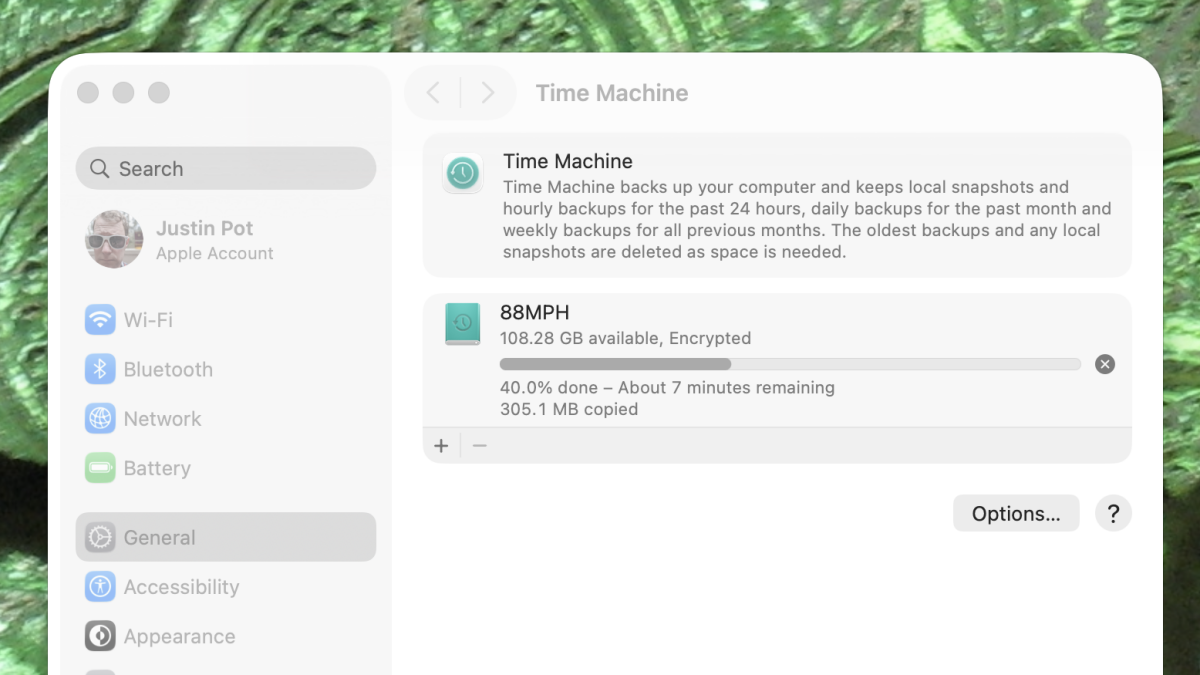
While numerous backup solutions exist, Time Machine stands out as a user-friendly and reliable option, especially for the average Mac user. Its seamless integration with the macOS operating system makes it incredibly convenient. Simply connect an external hard drive with sufficient storage capacity – ideally larger than your Mac’s internal drive – and navigate to System Settings > General > Time Machine. With just a few clicks, you can initiate the backup process.
Time Machine meticulously backs up everything on your Mac, including documents, photos, videos, applications, system settings, and application preferences. Unless specifically excluded, every file and configuration saved on your Mac is securely copied to the external drive. This comprehensive approach ensures that you can restore your entire system to a previous state in case of data loss, hardware failure, or other unforeseen issues. The reliability and ease of use are key benefits of using Time Machine.
Setting Up Time Machine: A Step-by-Step Guide
Configuring Time Machine is remarkably straightforward. Here’s a detailed guide to get you started:
- Connect an External Hard Drive: Connect a USB, Thunderbolt, or FireWire external hard drive to your Mac. Ensure the drive has enough storage space to accommodate all your data. As a general rule, the external drive should be at least twice the size of your Mac’s internal storage.
- Open Time Machine Preferences: Go to System Settings > General > Time Machine.
- Select Backup Disk: Click “Select Backup Disk” and choose the external hard drive you connected.
- Encryption (Optional): You can choose to encrypt your backup for added security. This will require you to create a password, which you’ll need to remember when restoring from the backup.
- Start Backup: Once you’ve selected the backup disk and configured encryption (if desired), Time Machine will automatically start backing up your Mac. The initial backup may take several hours, depending on the amount of data on your Mac.
After the initial backup, Time Machine will automatically perform incremental backups on an hourly basis. This means that only the files that have changed since the last backup will be copied, making subsequent backups much faster. Time Machine intelligently manages the backup space, deleting older backups as needed to make room for new ones.
Customizing Time Machine: Excluding Files and Folders
While Time Machine backs up everything by default, you can exclude specific files and folders from the backup process. This can be useful for excluding large files that you don’t need to back up or for excluding folders that contain sensitive information that you don’t want to store on the external drive. To exclude files or folders:
- Open Time Machine Preferences: Go to System Settings > General > Time Machine.
- Click “Options”: Click the “Options” button.
- Add Exclusions: Click the “+” button to add files or folders to the exclusion list. You can browse your Mac’s file system to select the items you want to exclude.
Excluding unnecessary files and folders can help reduce the size of your Time Machine backup and speed up the backup process. However, be careful not to exclude important files that you might need to restore in the future. Understanding how to customize the Time Machine settings is a key part of using it effectively.
Restoring Files with Time Machine: A Lifesaver
The real power of Time Machine lies in its ability to restore files and folders that have been accidentally deleted or corrupted. Restoring files from a Time Machine backup is a simple and intuitive process:
- Open Time Machine: Open the Time Machine application from the Applications folder or by clicking the Time Machine icon in the menu bar.
- Browse Backups: Time Machine will display a timeline of your backups. You can browse through the backups to find the version of the file or folder you want to restore.
- Select File or Folder: Select the file or folder you want to restore.
- Click “Restore”: Click the “Restore” button to restore the file or folder to its original location.
Time Machine allows you to restore individual files, entire folders, or even your entire system to a previous state. This flexibility makes it an invaluable tool for recovering from data loss and ensuring the continuity of your work. The ability to restore your entire system is a significant advantage of using Time Machine for Mac backups.
Time Machine vs. Cloud Backup: A Complementary Approach
While Time Machine provides a robust local backup solution, it’s important to understand that it’s not a replacement for cloud backup services. Cloud backups offer several advantages, including offsite storage and automatic backups. Offsite storage protects your data from physical damage to your home or office, such as fire, theft, or natural disasters. Automatic backups ensure that your data is always up-to-date, even if you forget to manually back up your Mac.
The ideal backup strategy involves a combination of local and cloud backups. Time Machine provides fast and reliable local backups for quick restores, while cloud backups provide offsite protection and automatic backups for added security. Services like iCloud, Backblaze, and Carbonite offer seamless cloud backup solutions that complement Time Machine perfectly. This layered approach ensures comprehensive data protection and minimizes the risk of data loss. Combining Time Machine with other methods ensures better Mac backup security.
Troubleshooting Common Time Machine Issues
While Time Machine is generally reliable, you may encounter occasional issues. Here are some common problems and their solutions:
- Backup Disk Not Available: Ensure the external hard drive is properly connected and powered on. Check the USB, Thunderbolt, or FireWire cable for damage. If the drive is still not recognized, try connecting it to a different port or using a different cable.
- Backup Process Slow: The initial backup can take several hours. Subsequent incremental backups should be much faster. If backups are consistently slow, try excluding unnecessary files and folders from the backup.
- Backup Disk Full: Time Machine automatically manages the backup space, deleting older backups as needed. If the backup disk is consistently full, consider upgrading to a larger drive.
- Backup Failed: Check the Time Machine logs for error messages. Common causes include corrupted files, insufficient disk space, and network connectivity issues. Try restarting your Mac and the external hard drive.
If you continue to experience problems with Time Machine, consult Apple’s support documentation or contact Apple Support for assistance. Addressing these issues promptly ensures that your Time Machine for Mac backups remain reliable.
Beyond Time Machine: Exploring Alternative Backup Solutions
While Time Machine is a great option for many Mac users, it’s not the only backup solution available. Several third-party applications offer advanced features and customization options. Some popular alternatives include:
- Carbon Copy Cloner: Carbon Copy Cloner creates bootable clones of your Mac’s hard drive, allowing you to quickly restore your entire system to a new drive in case of hardware failure.
- SuperDuper!: SuperDuper! is another popular cloning tool that offers similar features to Carbon Copy Cloner.
- Backblaze: Backblaze is a cloud backup service that provides unlimited storage for a fixed monthly fee.
These alternative solutions offer different features and benefits, so it’s worth exploring them to find the one that best suits your needs. Comparing these alternatives can help you choose the best Mac backup solution for your specific situation.
Best Practices for Time Machine Use
To ensure that your Time Machine backups are reliable and effective, follow these best practices:
- Use a Dedicated External Hard Drive: Avoid using the same external hard drive for multiple purposes. Use a dedicated drive solely for Time Machine backups.
- Keep the External Hard Drive Connected: For optimal protection, keep the external hard drive connected to your Mac as much as possible. This allows Time Machine to perform frequent backups.
- Verify Backups Regularly: Periodically verify that your Time Machine backups are working correctly by restoring a few files or folders.
- Store the External Hard Drive in a Safe Location: Store the external hard drive in a safe location, away from potential hazards such as fire, water, and theft.
- Consider Offsite Storage: For added protection, consider storing a copy of your Time Machine backup offsite, such as in a safety deposit box or at a friend’s house.
By following these best practices, you can maximize the effectiveness of Time Machine and ensure that your data is always protected. Proper usage is key to maintaining reliable Time Machine for Mac backups.
The Future of Mac Backups: What’s Next?
As technology evolves, so too will the landscape of Mac backups. We can expect to see continued advancements in cloud storage, with faster transfer speeds and more affordable pricing. We may also see the emergence of new backup technologies that offer even greater speed, reliability, and security. One potential area of innovation is the integration of artificial intelligence (AI) into backup solutions. AI could be used to intelligently prioritize backups, identify and exclude unnecessary files, and even predict potential data loss events. AI-powered backup solutions could provide a more proactive and efficient approach to data protection.
Regardless of the future, the fundamental principles of data backup will remain the same: protect your data by creating multiple copies and storing them in different locations. Whether you choose to use Time Machine, cloud backup services, or a combination of both, the key is to have a comprehensive backup strategy in place to protect your valuable data. Staying informed about new technologies will help you choose the best future Mac backup solutions.
In conclusion, even with the rise of cloud services, Time Machine remains a valuable and reliable tool for backing up your Mac. Its ease of use, seamless integration with macOS, and ability to restore your entire system make it an essential part of any comprehensive backup strategy. By following the steps outlined in this article and adhering to best practices, you can ensure that your data is always protected and that you can quickly recover from any data loss event. Don’t wait until it’s too late – start backing up your Mac with Time Machine today!
Frequently Asked Questions (FAQ)
| What is the main topic of this article? |
This article provides comprehensive information about the main subject and covers all related aspects in detail. |
| Where can I find more detailed information? |
Additional information and resources are available through the internal links provided throughout the article. You can also check the references section for more sources. |
| How current is this information? |
This article contains up-to-date information relevant to current trends and developments in the field. We regularly update our content to ensure accuracy. |
| Who is this article intended for? |
This article is designed for readers seeking comprehensive understanding of the topic, from beginners to advanced learners. It covers both basic concepts and advanced insights. |
| Are there any important updates I should know about? |
Yes, we regularly monitor developments and update our content accordingly. Check the publication date and any update notices for the most current information. |
Important Notice
This content is regularly updated to ensure accuracy and relevance for our readers. If you have any questions, feel free to contact us.
Content Quality: This article has been carefully researched and written to provide valuable insights and practical information. Our team works hard to maintain high standards.