Chrome Split View: Master Multitasking Like a Pro
Google Chrome continues to evolve, offering users innovative features designed to enhance productivity and streamline their browsing experience. One of the most exciting additions is the Chrome Split View feature, a powerful tool that allows you to view two websites simultaneously within a single browser tab. This feature is now available on the stable version of Chrome (version 142) and promises to revolutionize the way you use the internet. With Chrome Split View, multitasking becomes seamless and efficient, enabling you to stay focused and accomplish more in less time.
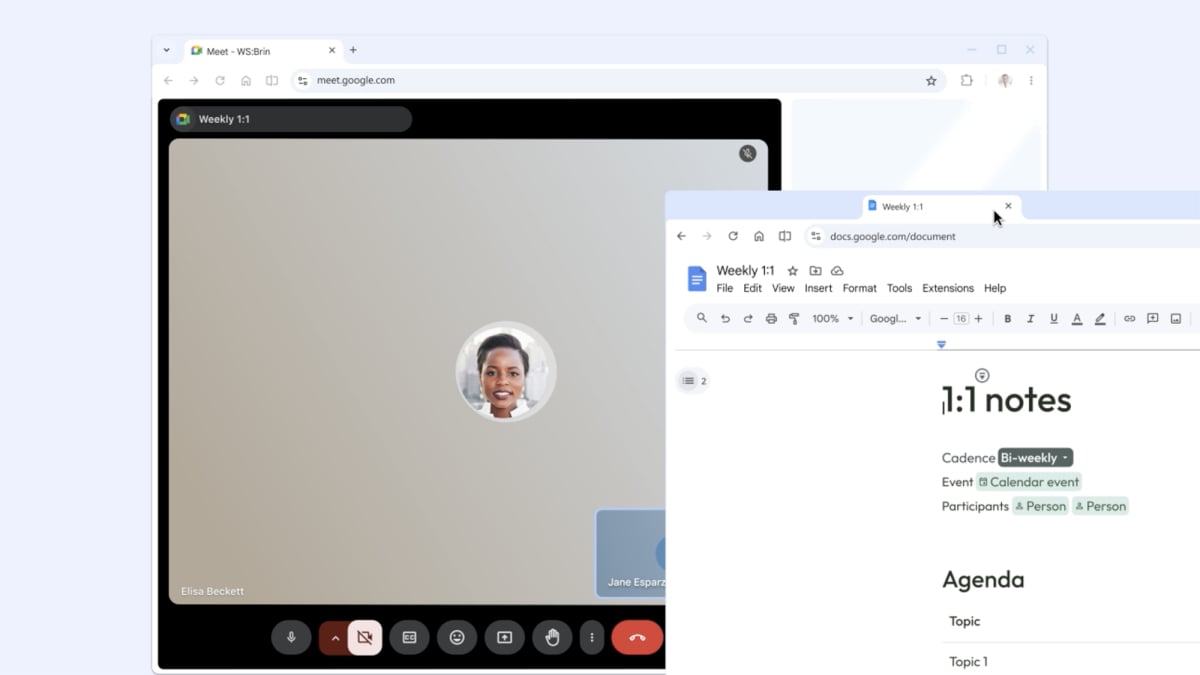
For those who haven’t yet experienced the benefits of Chrome Split View, this article will guide you through everything you need to know. We’ll cover how to check if you have the feature, how to enable it if it’s not automatically available, and how to use it effectively to boost your productivity. We’ll also explore the various use cases for Split View, demonstrating how it can be a game-changer for research, comparison shopping, content creation, and more. Get ready to transform your browsing habits with Chrome’s Split View!
Checking for and Enabling Chrome Split View
Before diving into the specifics of how to use Split View, it’s essential to ensure that you have the feature enabled in your Chrome browser. The good news is that Chrome Split View is now rolling out in the stable version of Chrome (version 142). However, it may not be immediately available to all users. Here’s how to check and enable Split View:
- Check Your Chrome Version: First, verify that you’re running the latest version of Chrome. Click the three dots in the top right corner of a browser tab, then select “Settings” and “About Chrome.” Chrome will automatically check for updates and download any available updates. Restart your browser to apply the updates.
- Enable Split View via Flags: If you’re on the latest version of Chrome and still don’t see Split View, you can manually enable it using Chrome flags. Type “chrome://flags/#side-by-side” into your browser address bar and press Enter. This will take you directly to the Split View flag. Enable the flag and restart your browser.
Once you’ve confirmed that Split View is enabled, you’re ready to start using this powerful feature to enhance your browsing experience. The process is straightforward, but understanding the different methods to initiate Split View will help you maximize its potential.
Creating a Split View: Multiple Methods
Chrome offers a couple of intuitive ways to create a Split View, catering to different user preferences. Both methods are designed to be seamless and efficient, allowing you to quickly set up your desired side-by-side browsing configuration.
- Right-Clicking on a Tab Header: This method is perfect for when you already have multiple tabs open. Simply right-click on the tab header of the page you want to view in Split View and select “Add tab to new split view” from the context menu. The selected tab will occupy one half of the Chrome window, and the other half will display either the New Tab page or another open tab, depending on your existing browsing session.
- Dragging and Positioning Tabs: This method is more dynamic and allows you to create a Split View by dragging an open tab (using its header) to the far left or far right of another tab. As you drag the tab, you’ll notice a small space opening up with a “Create split view” label. Release the tab, and Chrome will automatically create the Split View with the dragged tab occupying one side. This method also works with web links; you can drag a link directly into the Split View area to open it in the side panel.
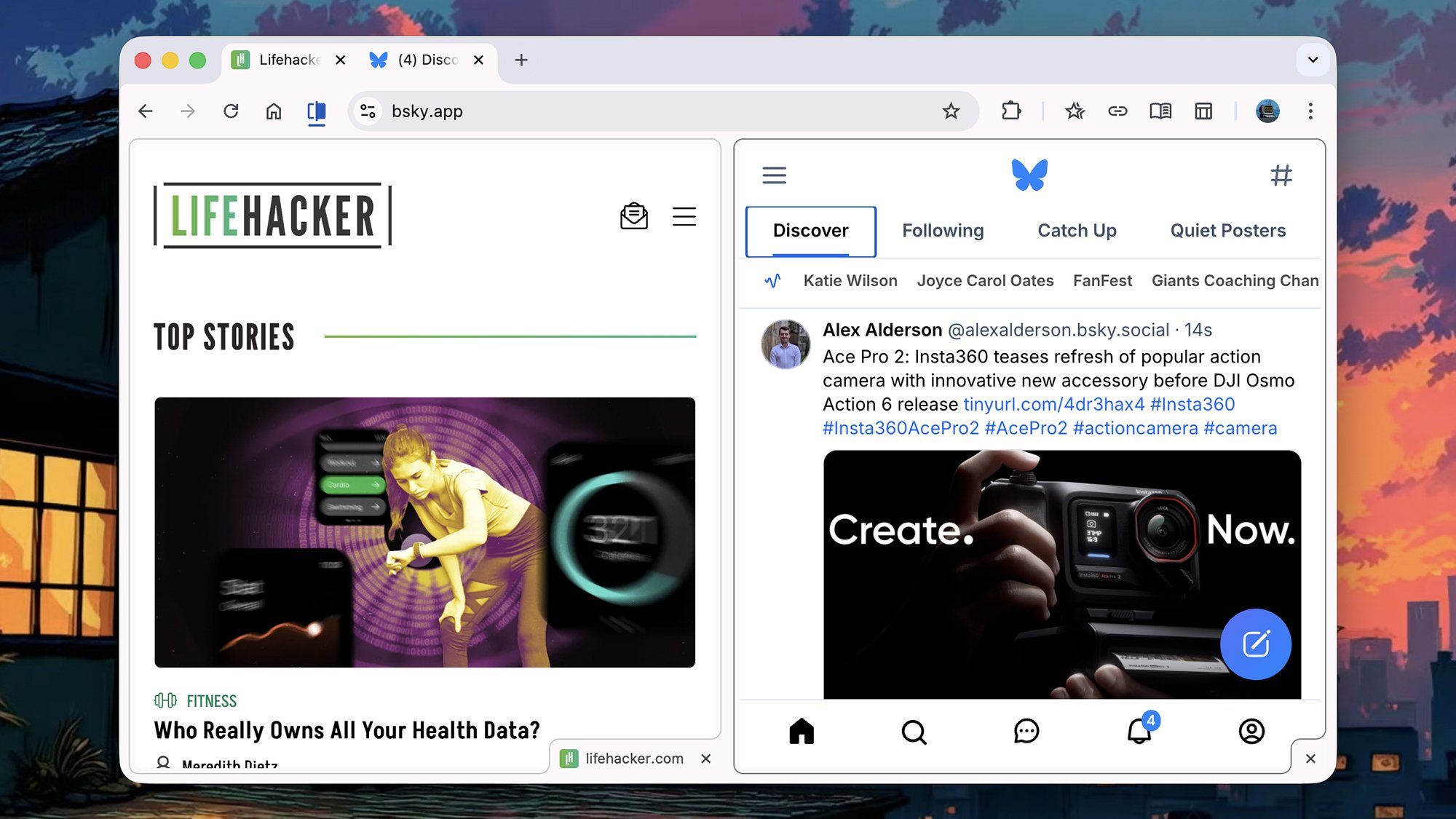
While the dragging and positioning method might require a bit of practice initially, it quickly becomes second nature. Once you master these techniques, you’ll be able to effortlessly create Split Views whenever you need them, significantly enhancing your multitasking capabilities.
The Benefits of Using Chrome Split View
The Chrome Split View feature offers a wide range of benefits that can significantly improve your browsing experience and boost your productivity. Here are some key advantages of using Split View:
- Enhanced Multitasking: Split View allows you to work on two tasks simultaneously without constantly switching between tabs or windows. This is particularly useful when you need to reference information from one website while working on another.
- Improved Research Efficiency: When conducting research, Split View enables you to compare different sources side-by-side, making it easier to analyze information and draw conclusions. You can have a research article open on one side and a notes document on the other, allowing you to take notes and synthesize information in real-time.
- Streamlined Comparison Shopping: If you’re shopping online, Split View allows you to compare products from different websites simultaneously. You can view product specifications, prices, and customer reviews side-by-side, helping you make informed purchasing decisions.
- Efficient Content Creation: Content creators can leverage Split View to improve their workflow. You can have a source document open on one side and a writing application on the other, allowing you to easily reference information and create content without constantly switching between tabs.
- Simplified Data Entry: For tasks that involve data entry, Split View can be a lifesaver. You can have the source data open on one side and the data entry form on the other, streamlining the process and reducing errors.
These are just a few examples of how Chrome Split View can enhance your productivity and streamline your browsing experience. The possibilities are endless, and as you become more familiar with the feature, you’ll discover even more ways to integrate it into your daily workflow. If you’re looking for a way to make the most of your Dell laptops, Split View can be a handy tool.
Practical Use Cases for Chrome Split View
To further illustrate the power of Chrome Split View, let’s explore some practical use cases that demonstrate how this feature can be applied in various scenarios:
- Academic Research: A student working on a research paper can use Split View to view a primary source document on one side and a secondary source analysis on the other. This allows for easy comparison and analysis of the information, leading to a more comprehensive understanding of the topic.
- Software Development: A software developer can use Split View to view code documentation on one side and the code editor on the other. This simplifies the coding process by providing easy access to the necessary information and reducing the need to switch between applications.
- Online Learning: An online student can use Split View to view a lecture video on one side and a note-taking application on the other. This allows for active learning and facilitates the retention of information.
- Social Media Management: A social media manager can use Split View to monitor social media feeds on one side and schedule posts on the other. This streamlines the social media management process and ensures that content is consistently published.
- Travel Planning: A traveler can use Split View to compare flight prices on one side and hotel options on the other. This allows for easy comparison of prices and amenities, helping the traveler make informed decisions.
These examples highlight the versatility of Chrome Split View and demonstrate how it can be applied in a wide range of contexts. Whether you’re a student, a professional, or simply someone who enjoys browsing the web, Split View can help you accomplish more in less time.
Customizing and Managing Split View
While Chrome Split View is designed to be intuitive and easy to use, there are a few customization options that can help you tailor the feature to your specific needs. Here are some tips for customizing and managing Split View:
- Adjusting the Split Ratio: You can adjust the ratio of the Split View by dragging the divider between the two panels. This allows you to allocate more screen space to one website or the other, depending on your needs.
- Switching Tabs Within Split View: You can easily switch between tabs within each panel of the Split View. This allows you to browse multiple websites within the side-by-side configuration.
- Opening Links in a Specific Panel: When you click on a link, you can choose to open it in either the left or right panel of the Split View. This allows you to control the flow of your browsing session and keep your workspace organized.
- Closing Split View: To close the Split View, simply close one of the tabs in either panel. Chrome will automatically revert to the standard tabbed browsing mode.
By mastering these customization options, you can fine-tune the Split View feature to perfectly match your browsing habits and workflow. This level of control ensures that you can maximize the benefits of Split View and enjoy a seamless and efficient browsing experience.
Potential Challenges and Workarounds
While Chrome Split View is a powerful tool, it’s important to acknowledge that it may present some challenges in certain situations. Here are some potential issues and workarounds to consider:
- Website Compatibility: Some websites may not be fully optimized for Split View, leading to display issues or functionality problems. In these cases, you may need to adjust the zoom level or switch to a standard tabbed browsing mode.
- Limited Screen Space: On smaller screens, Split View may feel cramped or overwhelming. Consider using Split View on a larger monitor or adjusting the split ratio to allocate more space to the most important website.
- Tab Management: When you have multiple Split Views open, it can be challenging to manage your tabs effectively. Use Chrome’s tab grouping feature to organize your tabs and keep your workspace tidy.
These challenges are relatively minor and can be easily overcome with a few simple adjustments. By being aware of these potential issues and implementing the suggested workarounds, you can ensure that you enjoy a smooth and productive Split View experience.
The Future of Multitasking with Chrome
Chrome Split View represents a significant step forward in the evolution of multitasking on the web. As Google continues to refine and improve this feature, we can expect to see even more innovative ways to leverage Split View to enhance productivity and streamline browsing. The possibilities are endless, and the future of multitasking with Chrome looks bright. The features of the Honor 8X, such as its split-screen capability, hint at the growing demand for multitasking tools.
One potential area of development is the integration of Split View with other Chrome features, such as tab syncing and cloud storage. This would allow users to seamlessly transfer their Split View configurations between devices and access their favorite websites and applications from anywhere. Another possibility is the introduction of advanced customization options, such as the ability to save and load Split View layouts. This would allow users to quickly set up their preferred browsing configurations for different tasks and scenarios.
As the web continues to evolve, multitasking will become increasingly important. Chrome Split View is well-positioned to meet this growing need and empower users to accomplish more in less time. By embracing this innovative feature, you can unlock a new level of productivity and take your browsing experience to the next level.
Conclusion: Embrace the Power of Split View
Chrome Split View is more than just a new feature; it’s a paradigm shift in the way we browse the internet. By allowing you to view two websites simultaneously within a single tab, Split View unlocks a new level of multitasking potential and empowers you to accomplish more in less time. Whether you’re conducting research, shopping online, creating content, or simply browsing the web, Split View can help you streamline your workflow and boost your productivity. It’s a feature that, once adopted, becomes indispensable. Similar to how the unveiling of the Huawei Mate 30 specs changed the mobile landscape, Chrome Split View is changing how we interact with the internet.
From checking your Chrome version and enabling Split View via flags to mastering the different methods of creating a Split View, this article has provided you with everything you need to get started. We’ve explored the numerous benefits of using Split View, including enhanced multitasking, improved research efficiency, streamlined comparison shopping, efficient content creation, and simplified data entry. We’ve also delved into practical use cases, demonstrating how Split View can be applied in various scenarios, from academic research to software development to online learning.
Furthermore, we’ve discussed how to customize and manage Split View to perfectly match your browsing habits and workflow. We’ve also addressed potential challenges and provided practical workarounds to ensure a smooth and productive Split View experience. Finally, we’ve explored the future of multitasking with Chrome, highlighting the potential for even more innovative features and integrations.
So, what are you waiting for? Embrace the power of Chrome Split View today and experience the difference it can make in your browsing habits and productivity. It’s time to say goodbye to endless tab switching and hello to a more efficient and streamlined browsing experience. Chrome Split View is here to stay, and it’s ready to revolutionize the way you use the internet.