Unbeatable Lenovo Laptop Deals: Up to 45% Off This Black Friday
Black Friday is just around the corner, but the deals have already arrived, especially if you’re looking for a new laptop. Lenovo is leading the charge with incredible discounts on some of its most popular models. Whether you’re after a reliable ThinkPad for work, a versatile Yoga for creative tasks, or a powerful Legion gaming machine, the Lenovo Black Friday laptop deals offer something for everyone. Let’s dive into the best offers currently available and help you find the perfect laptop at an unbeatable price.
The early Lenovo Black Friday laptop deals are particularly attractive because they provide an opportunity to secure a new laptop before the inevitable rush of Black Friday itself. This means less stress and a better chance of getting the specific model and configuration you want. Plus, with discounts reaching up to 45%, it’s a fantastic time to upgrade your current device or purchase a new one for a student or family member. The range of laptops on sale is impressive, ensuring that different needs and budgets are catered to.
The Lenovo IdeaPad Slim 3x: A Budget-Friendly Powerhouse
For those seeking a reliable and affordable laptop for everyday tasks, the Lenovo IdeaPad Slim 3x stands out as an excellent choice. Currently priced at $549 (down from $749), this laptop offers a compelling combination of performance and portability. Its Snapdragon processor ensures smooth multitasking and impressive battery life, making it ideal for students, professionals, and anyone who needs a dependable machine for browsing, email, and general productivity. While it’s important to note that some niche applications may not be fully supported due to the Snapdragon architecture, the IdeaPad Slim 3x excels in the core areas that matter most to typical users. This laptop truly embodies the spirit of Lenovo Black Friday laptop deals by offering incredible value for money.
The IdeaPad Slim 3x’s long battery life is a significant advantage. You can easily get through a full day of work or school without needing to plug in, making it perfect for on-the-go use. Its lightweight design further enhances its portability, allowing you to carry it comfortably in a backpack or bag. The display is crisp and clear, providing a pleasant viewing experience for both work and entertainment. Overall, the IdeaPad Slim 3x is a well-rounded laptop that delivers exceptional performance for its price point.
ThinkPad Reliability at Discounted Prices
Lenovo’s ThinkPad series is renowned for its durability, reliability, and focus on productivity. During the Lenovo Black Friday laptop deals, you can find significant savings on these workhorse machines. The ThinkPad 14, now available for $689 (was $969), and the ThinkPad E16, priced at $909 (was $1,239), are both excellent options for professionals and students who need a dependable laptop that can withstand the rigors of daily use. These laptops feature robust build quality, comfortable keyboards, and powerful components that ensure smooth performance for years to come. ThinkPads are known for their no-nonsense design and focus on functionality, making them a favorite among business users and anyone who values reliability.
The ThinkPad 14 offers a balance of portability and performance, making it a great choice for those who need to work on the go. Its compact size and lightweight design make it easy to carry around, while its powerful processor and ample memory ensure smooth multitasking. The ThinkPad E16, on the other hand, provides a larger display for enhanced productivity and a more immersive viewing experience. Both models come equipped with a range of security features, including fingerprint readers and TPM chips, to protect your data.
When considering a ThinkPad, it’s also worth exploring the various configuration options available. You can often customize the processor, memory, storage, and display to meet your specific needs and budget. This flexibility allows you to create a laptop that is perfectly tailored to your workflow. Plus, with the Lenovo Black Friday laptop deals, you can often find upgraded configurations at significantly reduced prices.
Gaming Powerhouses: Legion Laptops on Sale
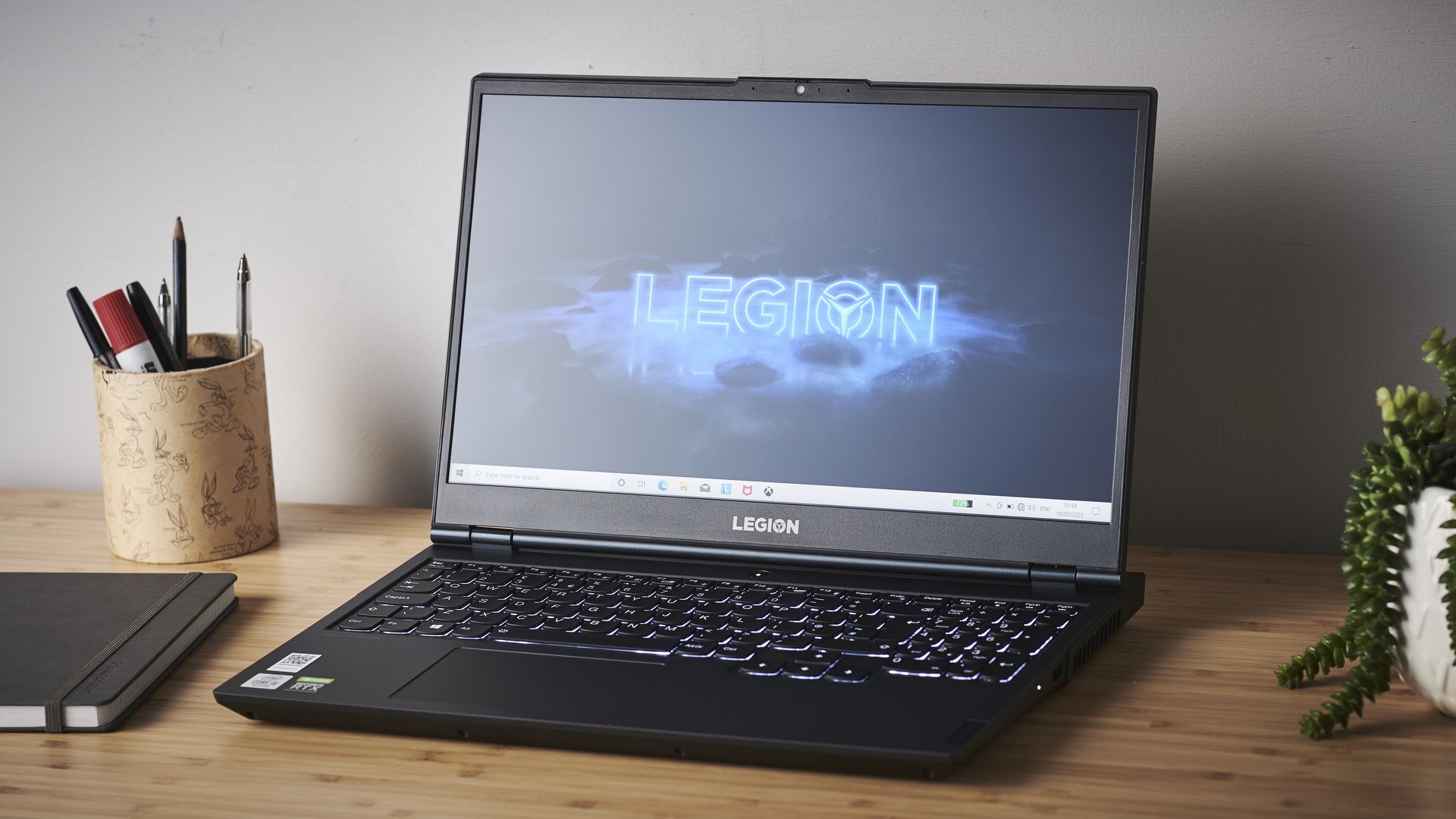
For gamers seeking high-performance laptops at discounted prices, the Lenovo Black Friday laptop deals on Legion models are not to be missed. The Legion 5, now available for $1,079 (was $1,314), and the Legion 5 Pro, priced at $1,499 (was $2,299), offer exceptional gaming experiences with their powerful processors, dedicated graphics cards, and high-refresh-rate displays. These laptops are designed to handle the most demanding games with ease, delivering smooth frame rates and stunning visuals. The Legion series is known for its aggressive design, advanced cooling systems, and customizable features, making it a popular choice among gamers of all levels.
The Legion 5 Pro stands out with its high-end OLED display, which offers vibrant colors, deep blacks, and exceptional contrast. This display technology significantly enhances the gaming experience, making visuals more immersive and realistic. The Legion 5, while slightly less expensive, still provides excellent performance and a great display, making it a solid choice for gamers on a budget. Both models come equipped with advanced cooling systems to prevent overheating during intense gaming sessions, ensuring consistent performance and longevity.
In addition to the Legion 5 and Legion 5 Pro, Lenovo often offers discounts on other gaming laptops during Black Friday. Be sure to check out the full range of options to find the perfect machine for your gaming needs. Consider factors such as the processor, graphics card, display resolution, and refresh rate when making your decision. Also, pay attention to the amount of RAM and storage, as these can significantly impact the overall gaming experience. If you’re interested in exploring alternative streaming options, you might find a free Plex alternative client useful for managing your media library.
Navigating the Lenovo Black Friday Laptop Deals
With so many Lenovo Black Friday laptop deals available, it’s important to approach your search strategically. Start by identifying your specific needs and budget. What will you primarily use the laptop for? What is the maximum amount you’re willing to spend? Once you have a clear understanding of your requirements, you can narrow down your options and focus on the models that best meet your criteria. Read reviews and compare specifications to make an informed decision. Also, be sure to check for any additional discounts or promotions that may be available, such as student discounts or cashback offers. Keeping an eye on the latest Google Pixel specifications and features, similar to what you’d do for a laptop, can ensure you’re making an informed choice based on current technology.
Another important tip is to act quickly. Black Friday deals often sell out fast, so it’s essential to be prepared and ready to make a purchase when you find the right laptop at the right price. Consider creating an account on the Lenovo website and saving your payment information to expedite the checkout process. Also, be aware of any return policies or warranty options that may be available. Understanding these details can give you peace of mind and protect your investment.
Beyond Laptops: Other Lenovo Black Friday Deals
While laptops are the main focus of Lenovo’s Black Friday sale, the company also offers discounts on a wide range of other products, including desktops, tablets, monitors, and accessories. If you’re looking to upgrade your entire tech setup, be sure to explore these other deals as well. You may find significant savings on items that complement your new laptop, such as a wireless mouse, a comfortable keyboard, or an external monitor. Lenovo’s Black Friday sale is a great opportunity to save money on all your tech needs.
For example, you might find discounts on Lenovo’s ThinkVision monitors, which are known for their excellent image quality and ergonomic design. These monitors can significantly enhance your productivity by providing a larger and more comfortable viewing area. You might also find deals on Lenovo’s Smart Tab series, which combines the functionality of a tablet with the convenience of a smart home hub. These tablets can be used for entertainment, productivity, and controlling your smart home devices.
As with laptops, it’s important to do your research and compare specifications before making a purchase. Read reviews and consider your specific needs and budget. Also, be aware of any additional discounts or promotions that may be available. Lenovo’s Black Friday sale is a great opportunity to save money on a wide range of tech products, so be sure to take advantage of the deals while they last.
The Future of Lenovo Laptops
Lenovo is constantly innovating and pushing the boundaries of laptop technology. Looking ahead, we can expect to see even more exciting developments in areas such as artificial intelligence, augmented reality, and foldable displays. Lenovo is committed to creating laptops that are not only powerful and reliable but also innovative and user-friendly. The company is also focused on sustainability and reducing its environmental impact. As technology continues to evolve, Lenovo will undoubtedly remain at the forefront of the laptop industry, delivering cutting-edge products that meet the ever-changing needs of its customers. Lenovo’s commitment to improvement can be seen even in older models, understanding features explored in devices like the HTC Desire 10 Lifestyle provides insight into how Lenovo adapts and enhances user experience across its product lines.
One area of focus for Lenovo is the integration of AI into its laptops. AI can be used to improve performance, enhance security, and personalize the user experience. For example, AI can be used to optimize power consumption, predict user behavior, and provide proactive support. Lenovo is also exploring the use of augmented reality to create new and immersive experiences. AR can be used to overlay digital information onto the real world, allowing users to interact with their laptops in new and innovative ways.
Foldable displays are another exciting area of development for Lenovo. Foldable laptops can transform from a compact tablet into a larger laptop with a full-size keyboard. This versatility makes them ideal for users who need a device that can adapt to different situations. Lenovo is also working on improving the durability and reliability of foldable displays, ensuring that they can withstand the rigors of daily use.
Conclusion: Don’t Miss Out on Lenovo’s Black Friday Laptop Deals
The Lenovo Black Friday laptop deals offer an unparalleled opportunity to save big on some of the best laptops on the market. Whether you’re looking for a budget-friendly option for everyday tasks, a reliable workhorse for productivity, or a powerful gaming machine for immersive entertainment, Lenovo has something for everyone. Don’t wait until Black Friday to start shopping. The early deals are already live, and they won’t last forever. Take advantage of these incredible discounts and upgrade your tech today!
Remember to carefully consider your needs and budget before making a purchase. Read reviews, compare specifications, and check for any additional discounts or promotions that may be available. With a little research and planning, you can find the perfect Lenovo laptop at an unbeatable price. Happy shopping!