Bose QuietComfort Earbuds: $50 Off Noise Cancellation
Are you tired of noisy commutes and distracting office environments? Do you crave immersive sound without breaking the bank? Then you might be interested in learning about the current deal on the Bose QuietComfort Earbuds. Right now, these highly-rated noise-canceling earbuds are available for $129, a significant discount from their usual $179 price tag. This sale offers a fantastic opportunity to experience Bose’s renowned audio quality and noise cancellation technology at a more accessible price point. Let’s delve into why these earbuds could be the perfect audio companion for your daily life.
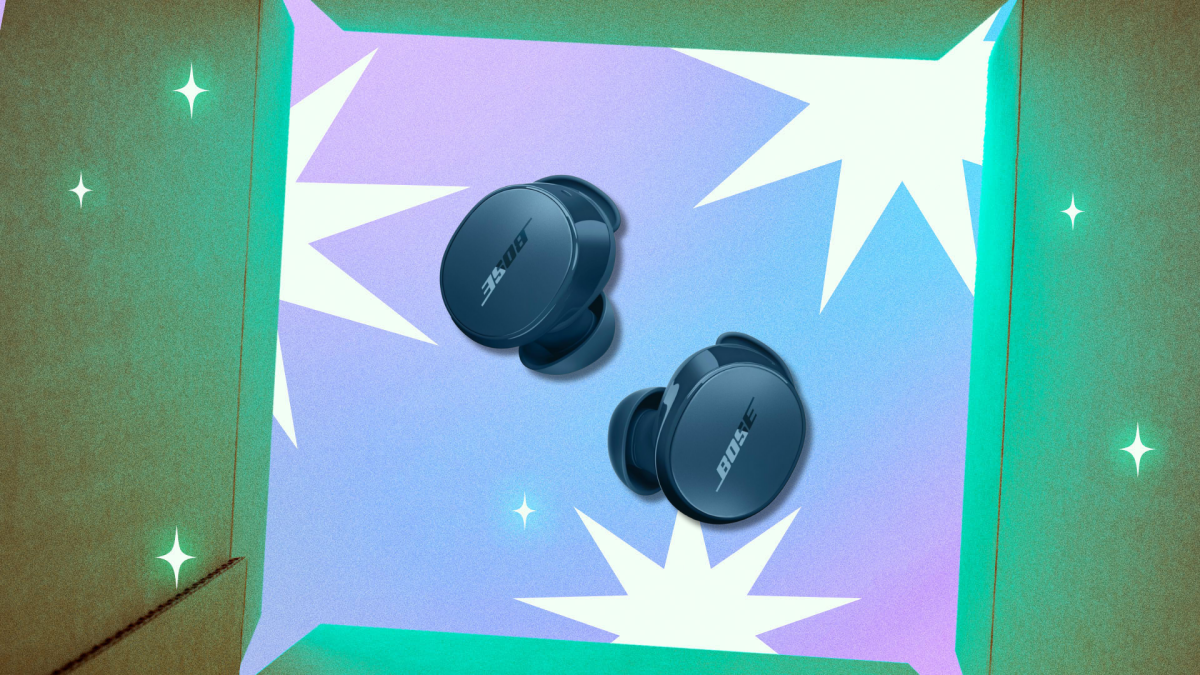
For those who find AirPods limiting, especially when switching between devices or desiring more color choices, the Bose QuietComfort Earbuds present a compelling alternative. Not only are they currently discounted, but they also offer a broader range of colors, including black, white, petal pink, and twilight blue. While Bose offers the higher-end QuietComfort Ultra model, the standard QuietComfort earbuds still deliver exceptional performance. As highlighted in PCMag’s 4/5 review, these earbuds excel in sound quality, everyday active noise cancellation (ANC), and seamless pairing with two devices simultaneously.
Unpacking the Features of Bose QuietComfort Earbuds
The Bose QuietComfort Earbuds are packed with features designed to enhance your listening experience. Here’s a closer look at what makes them stand out:
- Exceptional Sound Quality: Experience a warm and rich sound profile that’s perfect for extended listening sessions, whether you’re enjoying music or podcasts.
- Customizable EQ: Fine-tune the audio to your preferences using the companion app’s adjustable EQ, which offers noticeable and impactful changes to the sound.
- Effective Noise Cancellation: While not as powerful as the Ultra model, the ANC effectively reduces steady background noise, making commutes and office work more peaceful.
- Stable Connectivity: Bluetooth 5.3 ensures a reliable connection, though codec support is limited to AAC and SBC.
- Long Battery Life: Enjoy up to 8.5 hours of playtime on the earbuds themselves, with an additional 31.5 hours provided by the charging case.
The Bose QuietComfort Earbuds provide a listening experience that is both enjoyable and practical. The warm depth in the sound is perfect for long playlists and podcasts, preventing listening fatigue. The adjustable EQ within the companion app allows users to fine-tune their audio, making noticeable improvements rather than barely perceptible alterations. This level of customization ensures that the sound caters to individual preferences, enhancing the overall listening experience. The noise cancellation is strong enough to reduce consistent background noise, making everyday environments like commutes or office spaces less distracting. While the Ultra buds may offer slightly better noise cancellation, the standard QuietComfort earbuds hold their own, offering a significant improvement over standard earbuds.
Connectivity is another area where the Bose QuietComfort Earbuds shine. Bluetooth 5.3 provides a reliable and consistent connection. While the codec support is limited to AAC and SBC, which may be a consideration for Android users seeking high-resolution codecs, the average listener will find the connection to be more than adequate. Battery life is also impressive, with Bose claiming 8.5 hours on the earbuds and 31.5 hours more in the case. This extended battery life surpasses many earbuds in this price range and even outlasts Bose’s own higher-end Ultra model, making these earbuds a dependable choice for all-day use. This is particularly useful for those who rely on their earbuds throughout the day, whether for work, travel, or leisure.
Potential Drawbacks to Consider
Despite their many strengths, the Bose QuietComfort Earbuds do have a couple of potential drawbacks to consider:
- Size: The earbuds are bulkier than AirPods, which may not be comfortable for all users.
- Fit During Workouts: Some reviewers have noted that the earbuds can shift during workouts, even with the included wings and ear tip options.
The main drawback of these earbuds is their size. The QuietComfort earbuds are larger than AirPods, which can be a problem for some users. Some reviewers have mentioned that they can move during workouts, even with the included wings and multiple ear tip options. However, aside from these issues, the earbuds are straightforward to use. If you’re concerned about the security of your data while using wireless devices, it’s always good to understand and implement robust security measures. You can unlock seamless security by understanding and implementing passkeys for your online accounts.
Why Choose Bose QuietComfort Earbuds?
If you prioritize sound quality, effective noise cancellation, and long battery life, the Bose QuietComfort Earbuds are an excellent choice, especially at the discounted price of $129. They offer a compelling alternative to AirPods, with a wider range of color options and customizable sound settings. While the size and fit might be a concern for some, the overall performance and value make them a worthwhile investment.
The decision to choose Bose QuietComfort Earbuds largely depends on individual preferences and priorities. If you value superior sound quality and effective noise cancellation, these earbuds are an excellent option. The long battery life ensures that you can use them throughout the day without needing frequent recharges, making them suitable for travel, work, and leisure. The availability of multiple color options is also a significant advantage, allowing you to choose a style that matches your personal taste. Compared to AirPods, the Bose QuietComfort Earbuds offer a more customizable audio experience, thanks to the adjustable EQ within the companion app. This feature allows you to fine-tune the sound to your liking, ensuring that you get the most out of your music and podcasts.
However, it’s important to consider the potential drawbacks. The larger size of the earbuds may not be comfortable for everyone, especially those with smaller ears. Additionally, the fit during workouts might be a concern for active users, as the earbuds may shift even with the provided wings and ear tips. Despite these issues, the overall performance and value of the Bose QuietComfort Earbuds make them a worthwhile investment, especially at the discounted price of $129. They offer a compelling alternative to other earbuds on the market, providing a combination of sound quality, noise cancellation, and battery life that is hard to beat. If you’re looking for a reliable and high-performing pair of earbuds, the Bose QuietComfort Earbuds are definitely worth considering.
Alternatives to Bose QuietComfort Earbuds
While the Bose QuietComfort Earbuds are a great option, it’s always wise to explore alternatives before making a purchase. Here are a few other noise-canceling earbuds to consider:
- Apple AirPods Pro (2nd Generation): A popular choice with excellent noise cancellation and seamless integration with Apple devices.
- Sony WF-1000XM5: Known for their industry-leading noise cancellation and exceptional sound quality.
- Bose QuietComfort Ultra Earbuds: The higher-end model from Bose, offering even better noise cancellation and immersive audio.
When considering alternatives to the Bose QuietComfort Earbuds, the Apple AirPods Pro (2nd Generation) are a strong contender, especially for users deeply embedded in the Apple ecosystem. These earbuds offer excellent noise cancellation and seamless integration with Apple devices, making them a convenient choice for iPhone, iPad, and Mac users. The AirPods Pro also feature spatial audio, which provides a more immersive listening experience. However, they may not be the best option for Android users, as some features are limited on non-Apple devices. For Android users, the Realme GT 8 Pro redefines mobile excellence, and similarly, there are Android-optimized earbud options as well.
Another excellent alternative is the Sony WF-1000XM5. These earbuds are renowned for their industry-leading noise cancellation and exceptional sound quality. Sony has consistently delivered top-tier audio products, and the WF-1000XM5 are no exception. They offer a comfortable fit and a wide range of customizable settings, allowing you to tailor the sound to your preferences. The Sony WF-1000XM5 are a great choice for audiophiles and anyone who prioritizes noise cancellation above all else.
Finally, if you’re a fan of Bose and are willing to spend a bit more, the Bose QuietComfort Ultra Earbuds are worth considering. These are the higher-end model from Bose, offering even better noise cancellation and immersive audio. The QuietComfort Ultra Earbuds feature Bose’s Immersive Audio technology, which creates a more spacious and realistic soundstage. They also have a more refined design and improved comfort compared to the standard QuietComfort Earbuds. While they come at a premium price, the QuietComfort Ultra Earbuds offer a top-of-the-line listening experience. Before making a decision, you might want to ensure your online activities are secure. It’s worth checking if Cloudflare is experiencing a massive outage, as this can impact the security and performance of many websites and services.
Maximizing Your Savings: $50 Off Bose Noise-Canceling Earbuds
The current discount of $50 on the Bose QuietComfort Earbuds makes them an even more attractive option. To ensure you’re getting the best possible deal, here are a few tips:
- Check Multiple Retailers: Compare prices across different retailers to see if any additional discounts or promotions are available.
- Look for Bundles: Some retailers may offer bundles that include accessories or other products at a discounted price.
- Consider Refurbished Options: If you’re on a tight budget, consider purchasing a certified refurbished pair of earbuds.
To maximize your savings when purchasing the Bose QuietComfort Earbuds, it’s essential to check multiple retailers. Prices can vary significantly between different stores, both online and offline. Comparing prices across retailers such as Amazon, Best Buy, and the Bose website can help you identify the best deal available. Additionally, some retailers may offer exclusive discounts or promotions that are not available elsewhere. Taking the time to compare prices can ensure that you’re getting the most value for your money.
Another strategy to consider is looking for bundles. Some retailers may offer bundles that include accessories or other products at a discounted price. For example, you might find a bundle that includes a protective case, extra ear tips, or a portable charger. Bundles can be a great way to save money if you need additional accessories for your earbuds. Be sure to evaluate the value of the included items to determine if the bundle is truly a better deal than purchasing the earbuds and accessories separately. You might also find great tech deals at other retailers; for example, you can find unbeatable Walmart tech deals during early Black Friday sales.
If you’re on a tight budget, consider purchasing a certified refurbished pair of earbuds. Refurbished products are typically returned items that have been inspected and restored to like-new condition. They often come with a warranty, providing you with peace of mind. Refurbished earbuds can be significantly cheaper than new ones, allowing you to save money without sacrificing quality. Be sure to purchase refurbished products from a reputable retailer to ensure that you’re getting a genuine product in good condition. This can be a smart way to enjoy the benefits of the Bose QuietComfort Earbuds without breaking the bank.
Maintaining Your Noise-Canceling Bose Earbuds
To ensure your Bose QuietComfort Earbuds last for years to come, proper maintenance is key. Here are some tips to keep them in top condition:
- Clean Regularly: Use a soft, dry cloth to wipe down the earbuds and charging case regularly.
- Store Properly: When not in use, store the earbuds in their charging case to protect them from dust and damage.
- Avoid Extreme Temperatures: Don’t expose the earbuds to extreme temperatures or humidity.
To ensure the longevity of your Bose QuietComfort Earbuds, regular cleaning is essential. Use a soft, dry cloth to wipe down the earbuds and charging case regularly. This will help remove any dirt, dust, or debris that may accumulate over time. Avoid using harsh chemicals or abrasive cleaners, as these can damage the earbuds. Pay particular attention to the ear tips, as they can become dirty and harbor bacteria. You can remove the ear tips and clean them separately with a mild soap and water solution. Make sure to dry them thoroughly before reattaching them to the earbuds. Regular cleaning will not only keep your earbuds looking and smelling fresh but also help maintain their performance.
Proper storage is also crucial for protecting your Bose QuietComfort Earbuds. When not in use, store the earbuds in their charging case. The charging case provides a safe and secure place to store the earbuds, protecting them from dust, scratches, and accidental damage. Avoid leaving the earbuds lying around in your bag or on your desk, as this increases the risk of them getting damaged or lost. The charging case also helps keep the earbuds charged, ensuring that they’re always ready to use when you need them. By storing your earbuds in their charging case, you can significantly extend their lifespan and maintain their condition.
It’s important to avoid exposing your Bose QuietComfort Earbuds to extreme temperatures or humidity. Extreme temperatures can damage the internal components of the earbuds, affecting their performance. Avoid leaving the earbuds in direct sunlight or in a hot car, as this can cause them to overheat. Similarly, avoid exposing the earbuds to excessive humidity, as this can lead to corrosion and damage. If you’re using the earbuds during a workout, make sure to wipe them down afterwards to remove any sweat or moisture. By protecting your earbuds from extreme temperatures and humidity, you can prevent damage and ensure that they continue to perform optimally. If you are concerned about your online privacy, you might consider using a VPN, but be aware of the potential risks. It’s important to know is your free VPN a trap unmasking data risks before using one.
The Future of Noise-Canceling Technology
Noise-canceling technology is constantly evolving, with advancements being made in both hardware and software. Expect to see even more effective noise cancellation in future earbuds, along with features like personalized sound profiles and improved battery life.
The future of noise-canceling technology promises even more sophisticated and effective solutions. Advancements in both hardware and software are driving the evolution of this technology, leading to significant improvements in performance and functionality. One of the key areas of development is the refinement of noise cancellation algorithms. Future earbuds are expected to employ more advanced algorithms that can adapt to different environments and effectively block out a wider range of noises. This will result in a more immersive and distraction-free listening experience, whether you’re on a noisy commute, in a busy office, or at home.
Another exciting development is the integration of personalized sound profiles. Future earbuds may be able to analyze your hearing and create a customized sound profile that is tailored to your individual needs. This will ensure that you’re hearing the music or audio in the way that it was intended to be heard, with optimal clarity and detail. Personalized sound profiles can also help compensate for any hearing loss or deficiencies, enhancing the overall listening experience. This level of customization will make noise-canceling earbuds even more valuable for audiophiles and anyone who cares about sound quality.
Improved battery life is another key focus for future noise-canceling earbuds. As technology advances, manufacturers are finding ways to increase battery capacity while reducing power consumption. This will allow you to enjoy your earbuds for longer periods of time without needing to recharge them. Longer battery life is particularly important for travelers and anyone who spends long hours away from a power source. In addition to these advancements, we can expect to see new features such as transparency mode, which allows you to hear your surroundings without removing the earbuds, and improved voice call quality. The future of noise-canceling technology is bright, with exciting developments on the horizon that promise to transform the way we listen to audio. For parents looking for tech deals, there are also options such as saving 45% on a Fire Kids Pro tablet this Black Friday, providing both entertainment and educational value.
Conclusion: Is the $50 Off Bose QuietComfort Earbuds Deal Worth It?
At $129, the Bose QuietComfort Earbuds offer exceptional value for anyone seeking high-quality noise cancellation and immersive sound. While they may not be the smallest or most workout-friendly earbuds, their overall performance and long battery life make them a compelling choice. If you’re on the fence, now is the perfect time to take advantage of this limited-time offer and experience the difference that Bose noise cancellation can make. You may also find useful information on controlling AI in your feeds. Check out how this new TikTok tool can control how much AI is in your feed.
In conclusion, the $50 off deal on the Bose QuietComfort Earbuds presents a compelling opportunity for anyone looking to upgrade their listening experience. These earbuds offer a combination of excellent sound quality, effective noise cancellation, and long battery life, making them a versatile choice for various activities, from commuting and working to traveling and relaxing. While they may not be the smallest or most workout-friendly earbuds on the market, their overall performance and value make them a worthwhile investment, especially at the discounted price of $129. If you’ve been considering purchasing a pair of noise-canceling earbuds, now is the perfect time to take advantage of this limited-time offer and experience the difference that Bose noise cancellation can make. The enhanced sound quality, combined with the noise-canceling features, provides a listening experience that is both immersive and enjoyable. Whether you’re a music lover, a podcast enthusiast, or simply someone who wants to block out distractions, the Bose QuietComfort Earbuds can significantly improve your daily life. Don’t miss out on this opportunity to own a pair of high-quality earbuds at a reduced price. Also, be sure to check out the best AirPods Pro 2 deal before Black Friday to compare options before making a final decision.