Unlock Gemini on Your Google Home Speaker: A Comprehensive Guide
The landscape of smart home technology is constantly evolving, and at its forefront is the continuous innovation in artificial intelligence. For many Google Home users, the anticipation around Gemini, Google’s next-generation AI assistant, has been palpable. Designed to offer a more conversational, intuitive, and powerful experience, Gemini promises to transform how we interact with our smart speakers and displays. However, despite its official rollout beginning in late October, a significant number of users find their Google Home devices still operating with the familiar yet increasingly limited Google Assistant. If you’re among those wondering why your device hasn’t made the switch, and you’re keen on activating Gemini on Google Home, you’ve arrived at the definitive guide.
This article will meticulously walk you through the necessary steps to transition your Google Home speaker or display to Gemini. We’ll cover everything from confirming your eligibility for early access to troubleshooting common issues and maximizing the new AI’s capabilities. The goal is to ensure you can seamlessly upgrade your smart home experience and begin leveraging the advanced intelligence Gemini offers, moving beyond the confines of the older Google Assistant.
The Evolution of AI on Your Smart Speaker: Why Gemini Matters
For years, Google Assistant served as the backbone of Google’s smart home ecosystem, enabling voice commands for myriad tasks from setting alarms to controlling smart lights. While functional, Google Assistant often felt like a command-response system, lacking the nuanced understanding and conversational depth that modern AI is beginning to provide. The introduction of Gemini marks a pivotal shift, moving towards a more natural, fluid, and context-aware interaction.
Gemini is built on a more advanced large language model, allowing for more complex queries, better follow-up questions, and a greater ability to understand intent rather than just keywords. This means your smart speaker can potentially engage in longer, more meaningful conversations, assist with more intricate tasks, and even generate creative content. For anyone looking to enhance their daily interactions with their smart devices, understanding how to get Gemini on Google Home is not just about an upgrade; it’s about unlocking a new paradigm of smart living.
Enhanced Capabilities and User Experience
The benefits of Gemini extend far beyond simple conversational improvements. Users can expect a more personalized experience, with Gemini learning preferences and adapting responses over time. Imagine asking your speaker to summarize a lengthy email, draft a social media post, or even brainstorm ideas for a project – all tasks that push the boundaries of what Google Assistant could achieve. Gemini’s multi-modal understanding also means it can process information from various inputs, including visual cues if your device has a screen, leading to richer and more dynamic interactions. This leap in capability makes the process of activating Gemini on Google Home a highly sought-after upgrade for many tech enthusiasts.
Confirming Your Eligibility: The Early Access Program
The primary reason many users haven’t yet received Gemini on their Google Home devices is often related to the rollout strategy. Google is initially deploying Gemini through an early access program. This phased approach allows them to gather feedback and refine the experience before a broader release. Therefore, the very first step in activating Gemini on Google Home is to ensure your account is part of this program.

Step-by-Step: Checking Early Access Status
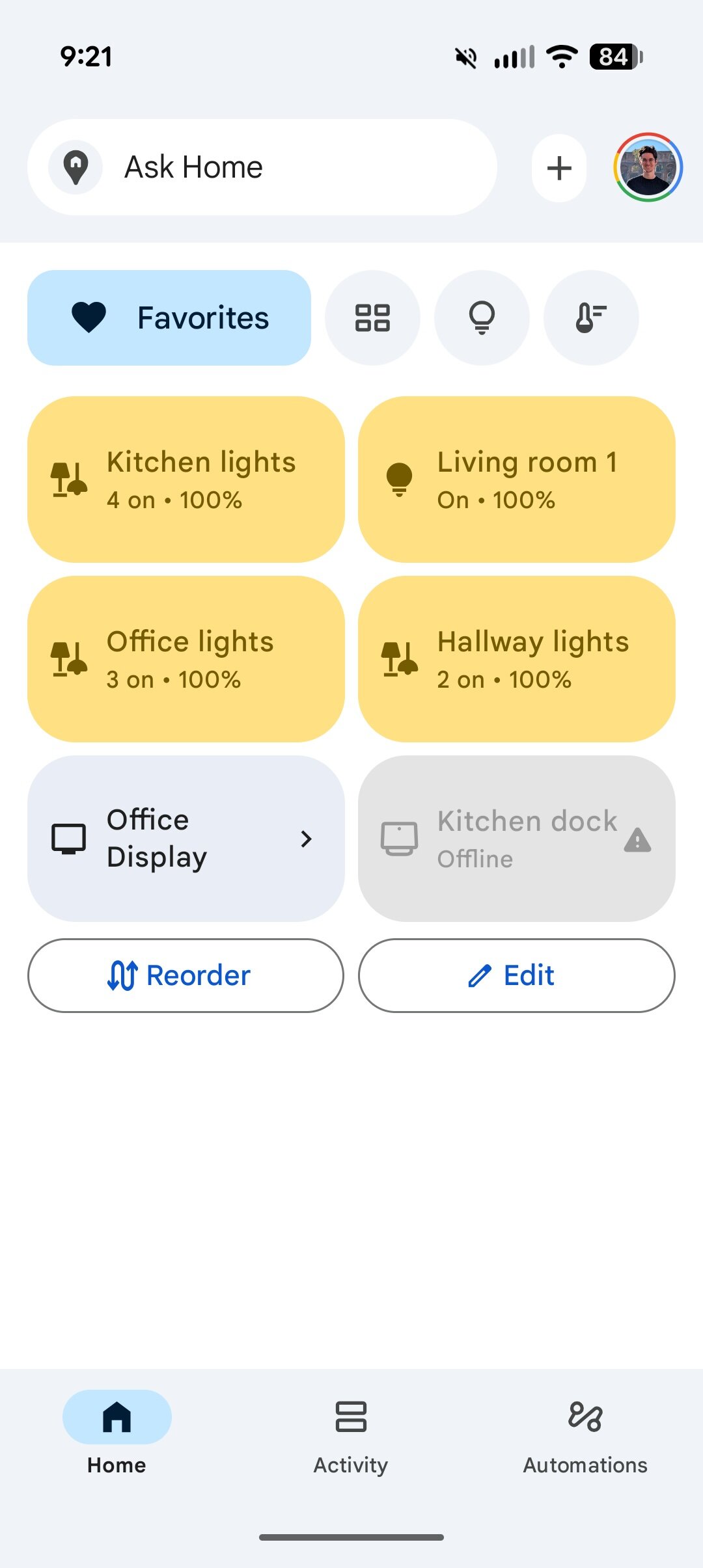
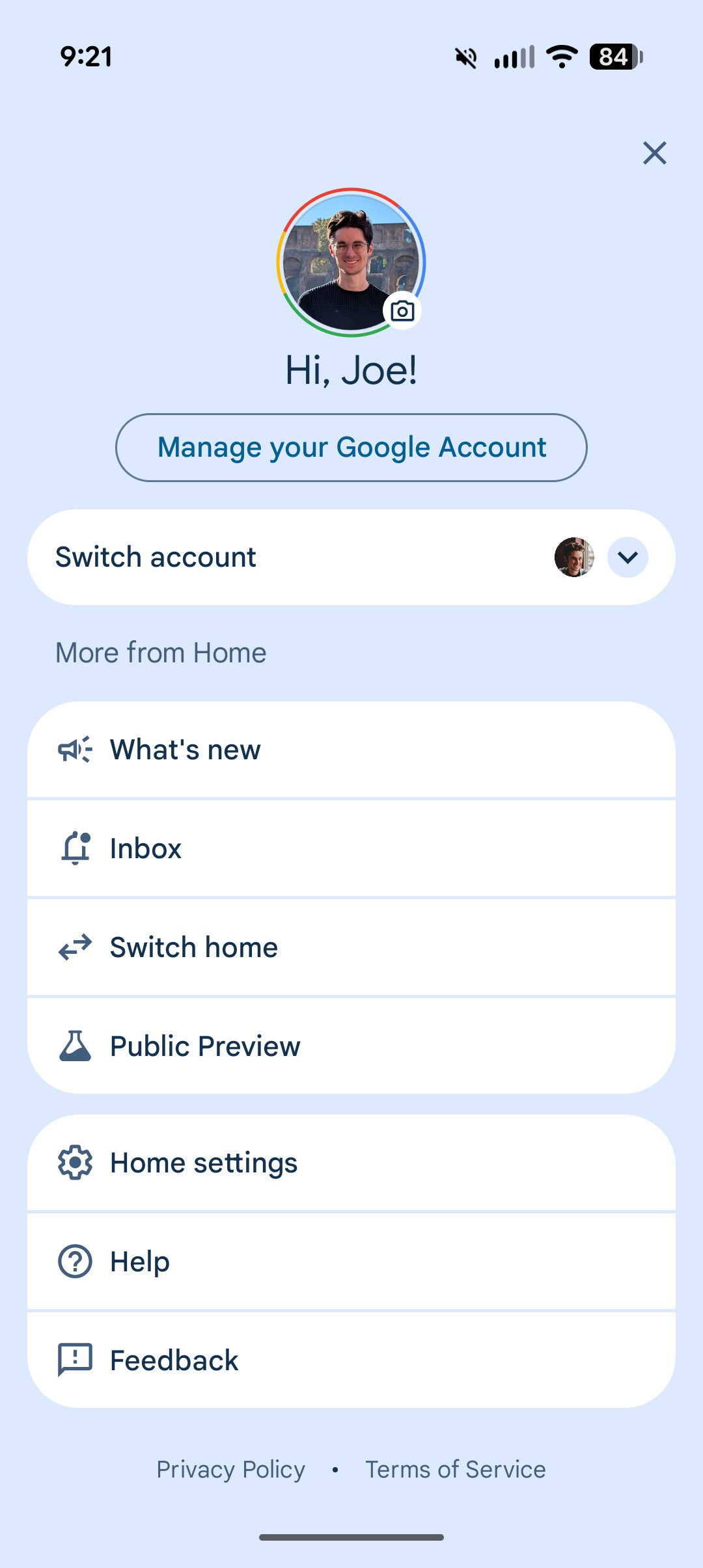
To verify your enrollment in the early access program, follow these simple instructions:
- Open the Google Home app on your smartphone or tablet. Ensure you’re using the latest version of the app.
- Tap on your profile picture, located in the top-right corner of the screen. This will open a menu related to your account and home settings.
- Select “Home settings” from the options presented.
- Scroll down to the very bottom of the page.
- Look for and tap on “Early access.”
If you see an option to join the program, proceed to enroll. It’s important to understand that joining doesn’t guarantee immediate access. Google needs time to process your registration and roll out the update to your devices. This period can range from a few hours to several days, so patience is key after taking this initial step towards activating Gemini on Google Home.
What if You’re Not Enrolled? Joining the Program
If you discover you’re not yet part of the early access program, the solution is straightforward: join it! Follow the steps above, and when prompted, opt-in. While there might be a waiting period, this is the most direct path to receiving the Gemini update. Without being in the program, your Google Home speaker will likely remain on Google Assistant indefinitely. Keep an eye on your app notifications and device status in the days following your enrollment.
Navigating the Google Home App for Gemini Activation
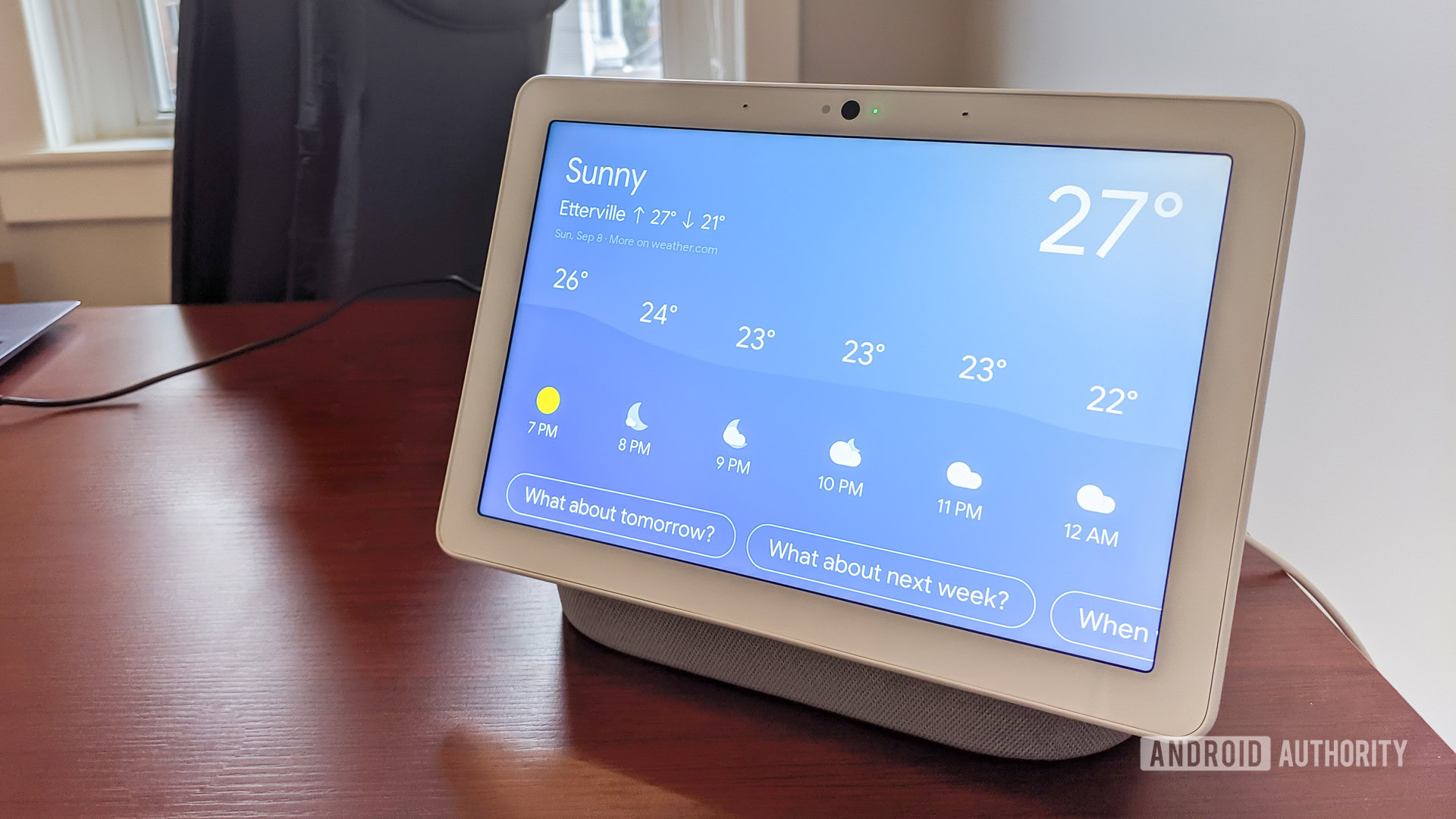
Once you’ve confirmed your early access enrollment or if it’s been a reasonable amount of time since joining, the next phase involves actively looking for the Gemini option within the Google Home app. Sometimes, the update is not entirely automatic, requiring a specific action from the user to trigger the switch. This section guides you through finding and initiating the Gemini upgrade.
Locating the Gemini Option in Settings
Assuming you’re in the early access program and have waited a bit, here’s how to check for the Gemini option:
- Open the Google Home app on your device.
- Tap your profile picture in the top-right corner.
- Tap “Home settings.”
- Carefully browse through the settings menu. Google often introduces new features with a specific banner or a dedicated section. Look for anything explicitly mentioning “Gemini,” “AI Assistant,” or “Upgrade Assistant.” This section might appear under “Features,” “Assistant settings,” or a new “Gemini” category.
If you find the option, follow the on-screen prompts to begin the activation process. This usually involves a confirmation screen and potentially a brief setup. The process of activating Gemini on Google Home should then proceed relatively smoothly.
Understanding the Rollout Phases and Patience
It’s crucial to remember that software rollouts, especially for significant AI upgrades like Gemini, are often staggered. This means not all users in the early access program will receive the update simultaneously. Factors like geographical location, device model, and even the specific Google account configuration can influence when the update becomes available to you. If you don’t see the option immediately, don’t despair. Continue checking the Google Home app periodically. Sometimes, simply restarting the app or even your phone can refresh the settings and reveal the new option. Google’s commitment is to ensure a stable and bug-free experience, which sometimes necessitates a slower, more controlled deployment.
Troubleshooting Common Hurdles When Activating Gemini on Google Home
Even with early access and diligent checking, some users might still face issues with activating Gemini on Google Home. Technology can be unpredictable, and various factors can prevent a seamless transition. This section addresses common problems and provides actionable solutions to get your smart speaker upgraded.
Force Quitting and Reopening the App
One of the simplest yet most effective troubleshooting steps is to force close the Google Home app and then reopen it. This clears its temporary memory and forces it to reload, potentially fetching new configuration data from Google’s servers that might include the Gemini activation prompt. On Android, you can usually do this by going to your phone’s Settings > Apps > Google Home > Force Stop. On iOS, swipe up from the bottom (or double-tap the Home button on older iPhones) to see open apps, then swipe the Google Home app upward to close it. This often resolves minor syncing issues.
Clearing Cache and Data
If a simple force quit doesn’t work, clearing the app’s cache and data can be the next step. This resets the app to its default state, removing any potentially corrupted files that might be interfering with the update. Be aware that clearing data will require you to log back into your Google account within the Home app. You can typically find this option in your phone’s Settings > Apps > Google Home > Storage > Clear Cache / Clear Data. This can be particularly helpful if you’re stuck on Google Assistant and believe a local app issue is preventing the Gemini upgrade. For optimal device performance, ensuring your charging accessories are also up to par can sometimes prevent unexpected software glitches. If you’re using a Pixel device, you might want to review our guide on Pixel charger confusion to ensure you’re using the right wireless pad, as consistent power can be crucial for updates.
Device Reboot and Firmware Updates
Sometimes the issue isn’t with the app, but with the smart speaker itself. A simple reboot of your Google Home speaker or display can often resolve lingering software glitches. Unplug the device from its power source, wait for about 30 seconds, and then plug it back in. Allow it a few minutes to fully restart and reconnect to your Wi-Fi. Additionally, ensure your Google Home device’s firmware is up to date. While these updates are usually automatic, checking the device settings in the Google Home app can confirm its current firmware version. Outdated firmware can sometimes block new feature rollouts.
The Importance of Region and Language Settings
Google often rolls out new features based on region and language. Double-check that your Google account’s region and language settings, as well as those of your Google Home devices, match a supported region for Gemini’s early access. Typically, this would be English in the United States, but specific rollouts can vary. Inconsistent settings can sometimes prevent the update from appearing. Ensure all related settings are uniform.
Optimizing Your Google Home for Gemini’s Full Potential
Once you’ve successfully navigated the steps for activating Gemini on Google Home, the real fun begins: exploring its enhanced capabilities. Gemini is designed to be more than just a voice assistant; it’s a proactive partner in your smart home. To truly leverage its power, a few optimization steps can significantly improve your daily interactions and overall experience.
Personalizing Gemini Settings
Just like Google Assistant, Gemini will have its own set of customizable preferences. Dive into the Google Home app and look for Gemini-specific settings. This might include voice preferences, personal results, and integration with other Google services. Taking the time to personalize these settings ensures Gemini understands your routines, preferences, and even your unique speaking patterns, leading to more accurate and helpful responses. Consider linking your calendar, email, and other productivity tools to allow Gemini to assist with complex tasks seamlessly.
Integrating with Other Smart Devices
Gemini’s strength lies not just in its intelligence but also in its ability to orchestrate your entire smart home. Ensure all your compatible smart devices – lights, thermostats, locks, cameras – are properly linked within the Google Home app. With Gemini, you can create more intricate routines and ask more complex multi-device commands. For instance, instead of saying “Turn off the living room lights,” you might say, “Prepare the house for movie night,” triggering a sequence that dims lights, adjusts the thermostat, and starts your smart TV. This level of integration elevates the smart home experience considerably. Speaking of seamless integration, users of Android Auto can also unlock a world of customization by exploring hidden settings in Android Auto, enhancing their in-car tech experience in a similar vein to personalizing their smart home.
Leveraging Advanced Commands
Experiment with Gemini’s capabilities by trying more advanced and conversational commands. Ask follow-up questions, request summaries, or even engage in creative writing prompts. Gemini is designed to maintain context across multiple turns of conversation, making interactions feel more natural and less like a series of isolated commands. For example, you can ask for a recipe, then immediately ask for ingredient substitutions without repeating the dish’s name. The more you interact with Gemini, the better it learns and the more useful it becomes. This iterative learning process is a core aspect of activating Gemini on Google Home to its fullest.
The Broader Impact: Gemini and the Smart Home Ecosystem
The rollout of Gemini to Google Home devices is more than just an individual device upgrade; it represents a significant step forward for the entire smart home ecosystem. This advanced AI is poised to redefine user expectations and drive future innovations across interconnected devices. Understanding these broader implications can help users appreciate the full scope of activating Gemini on Google Home.
Multi-Device Sync and AI Consistency
One of Gemini’s most promising aspects is its potential to create a more consistent and unified AI experience across all your Google-powered devices. Whether you’re interacting with Gemini on your phone, your smart speaker, or a smart display, the AI’s understanding, memory, and personalized responses should remain consistent. This multi-device sync means your preferences and ongoing conversations can seamlessly transition from one device to another, offering a truly ubiquitous assistant experience. As AI capabilities expand, we might even see the integration of advanced features like playing PC games on Android devices becoming more fluid, blurring the lines between different computing platforms and enhancing the overall digital lifestyle.

Privacy and Security Considerations
With increased intelligence comes increased responsibility, particularly concerning privacy and security. Google emphasizes that Gemini is designed with privacy in mind, offering controls over data usage and interaction history. Users are encouraged to review Gemini’s privacy settings and understand how their data is being used to personalize the experience. As smart speakers become more integral to our lives, ensuring robust security measures and transparent data practices will remain paramount. Google’s ongoing efforts to secure its ecosystem are vital for user trust, just as audiophiles consider the intricate details of sound engineering, such as those found in a complete guide to planar headphones, to ensure optimal listening experiences.