Master Your Mac’s Clipboard: Spotlight’s New History Feature
Ever found yourself in a mad dash, copying a piece of text, then another, and then another, only to realize you desperately needed that *very first* item you copied? You know the drill. It’s that familiar pang of frustration, the frantic back-and-forth, trying to re-find the original source, all because your Mac’s clipboard was, well, a bit of a one-trick pony. For years, this was just a fact of life for Mac users, a minor inconvenience that somehow felt… bigger.
Well, folks, I’m here to tell you that those days are, thankfully, behind us. With the advent of macOS 26 Tahoe, Apple has finally, *finally*, integrated a native clipboard history feature directly into Spotlight. Yes, you read that right. You can finally see your Mac’s clipboard history in Spotlight, and it’s a genuine game-changer for anyone who spends more than five minutes a day copy-pasting.
The Long-Awaited Arrival of a Native Solution
For what feels like an eternity in tech years, Mac users have relied on an army of fantastic third-party applications to bridge this glaring gap. Apps like Paste, CopyClip, and Alfred’s clipboard history have been indispensable tools for power users, offering a lifeline to forgotten snippets and misplaced links. They’ve done a stellar job, no doubt, and honestly, hats off to the developers who recognized this need long before Apple did.
But let’s be real: there’s nothing quite like a native solution. No extra apps running in the background, no potential compatibility quirks after a major macOS update, just seamless integration that feels like it was always meant to be there. And that’s exactly what we’ve got with macOS 26 Tahoe. It’s not just a feature; it’s a fundamental quality-of-life improvement that makes you wonder how we ever managed without it. For me, it immediately streamlined my research workflow, cutting down those little moments of friction that add up throughout the day.
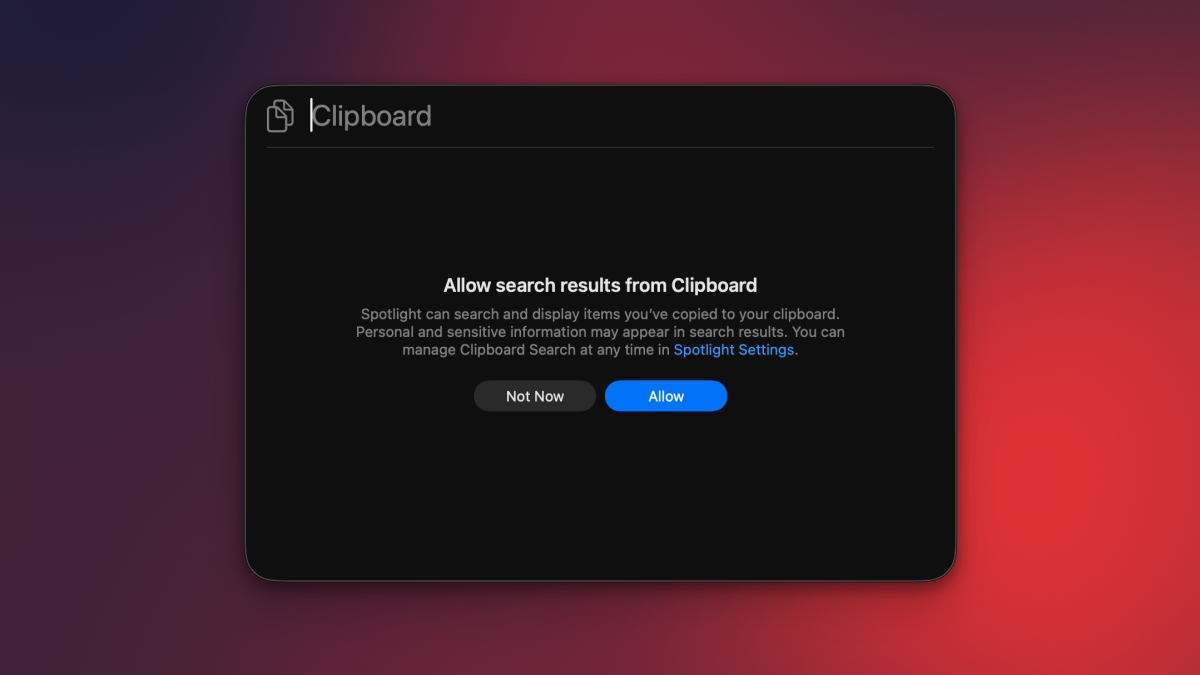
This isn’t just about convenience; it’s about reclaiming mental bandwidth. No longer do you have to actively remember what you copied and in what order. Your Mac is now doing that heavy lifting for you, storing pretty much everything you’ve copied in the past month. Think about that for a second. Thirty days of copy history, instantly searchable. It’s a bit like having a perfect short-term memory assistant always at your beck and call.
Setting Up Your Clipboard History in Spotlight
Before you dive headfirst into this newfound productivity paradise, there’s a tiny little step you need to take. Clipboard history is actually disabled by default in macOS 26 Tahoe. Don’t ask me why; maybe Apple wanted to give users the choice, or perhaps they’re gently easing us into these powerful new features. Either way, enabling it is quick and painless.
Here’s how to get it rolling:
- Open System Settings: Click the iconic Apple logo in the top-left corner of your Mac’s display. From the dropdown menu, select “System Settings.” It’s the nerve center for all things customization on your Mac.
- Navigate to Spotlight: In the System Settings sidebar, you’ll see a list of categories. Scroll down until you find “Spotlight” and click on it. This is where you manage what Spotlight indexes and how it presents results.
- Enable “Results from Clipboard”: In the right pane, you’ll need to scroll down a bit. Look for an option titled “Results from Clipboard.” It’s likely a toggle switch. Go ahead and flip that bad boy on!
- Choose Your Retention Period: This is a crucial step, and it speaks to Apple’s thoughtfulness regarding privacy. Right below the “Results from Clipboard” toggle, you’ll find a dropdown menu. This lets you decide how long your Mac should remember your copied items. Apple gives you three practical choices:
- 8 hours: Great for those who are highly security-conscious or just need short-term recall.
- 7 days: A good middle-ground for most users, offering solid recall without over-retaining data.
- 30 days: My personal favorite. This gives you ample time to retrieve something you copied weeks ago – invaluable for long-term projects or when you’re just a bit forgetful (like me!).
Pick the option that best suits your workflow and comfort level. Once you’ve made your choice, you’re all set! No need to hit a “Save” button; the changes apply instantly. It’s that simple.
Accessing and Utilizing Your Clipboard History
Now for the fun part: actually using this fantastic new feature. It’s integrated so smoothly into Spotlight that if you’re already a regular user of Apple’s universal search, you’ll feel right at home.
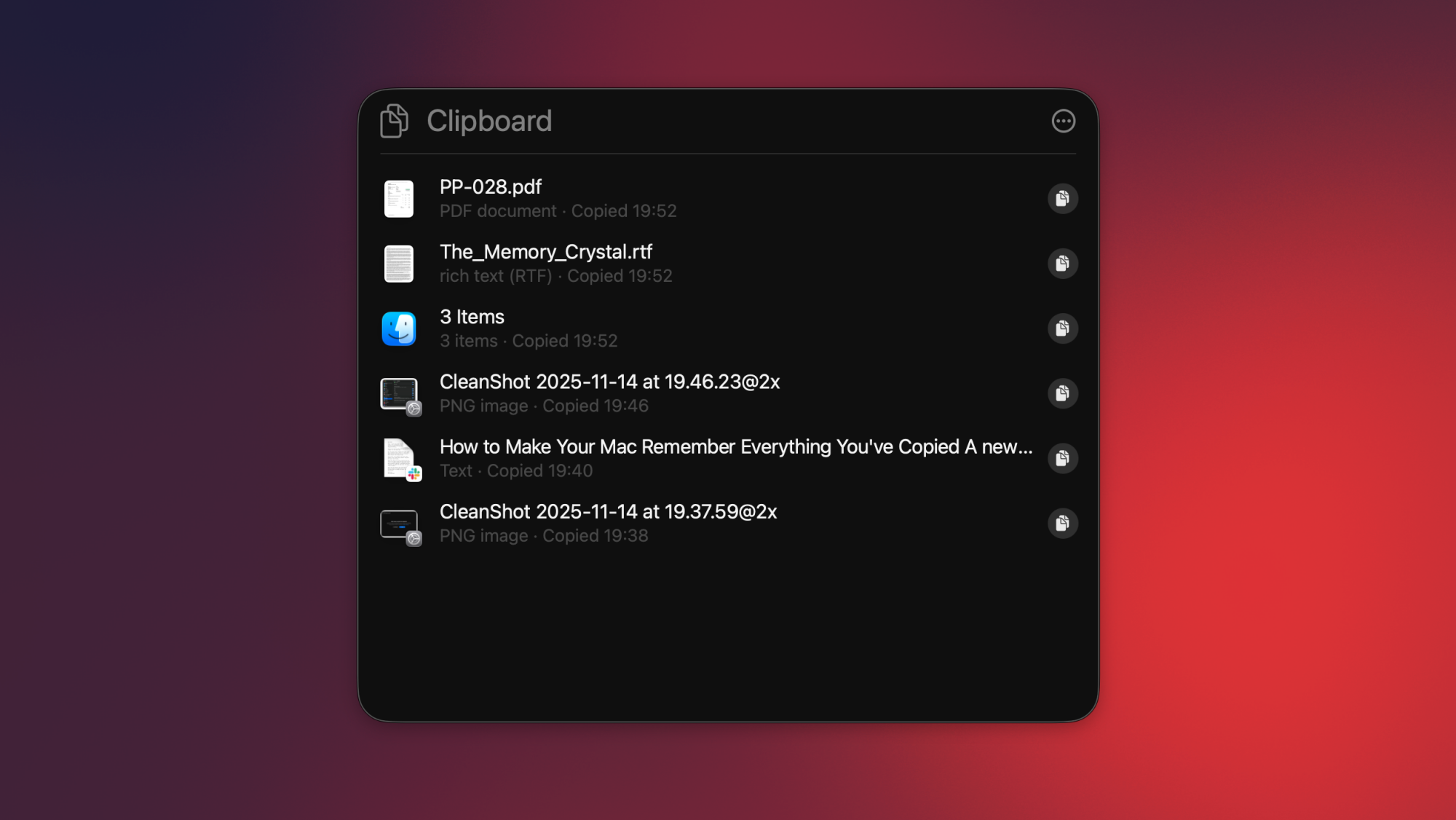
To access your clipboard history, simply invoke Spotlight as you normally would. The classic `Command + Spacebar` keyboard shortcut is your best friend here. Once the Spotlight search bar appears, you can do one of two things:
- Start Typing: If you remember a keyword or phrase from an item you copied, just start typing it into Spotlight. Spotlight is smart; it will not only search your files and applications but now also intelligently pull up relevant items from your clipboard history. For example, if you copied a client’s address last week and can only remember “Maple Street,” typing “Maple Street” might bring up that address from your history.
- Simply Open Spotlight: Even if you don’t type anything, just opening Spotlight will often show you your most recent clipboard entries right there in the results list. It’s incredibly intuitive. You’ll see them clearly labeled, usually with a small clipboard icon and a timestamp, making it easy to identify what you’re looking for.
Once you see the item you want to re-paste, you have a couple of options:
- Select and Paste: Use your arrow keys to navigate to the desired clipboard item in the Spotlight results. Hit `Return` or `Enter`, and that item will be copied to your *current* clipboard. Then, you can simply `Command + V` to paste it wherever you need it.
- Drag and Drop (for some content): For certain content types, like images or files, you might even be able to drag them directly from the Spotlight results into another application, which is pretty neat.
This functionality is a godsend for anyone juggling multiple pieces of information. Think about writing a research paper where you need to cite various sources: copy a quote, then a URL, then another quote, then an author’s name. Before, you’d be constantly switching tabs and re-copying. Now, you can just `Command + Space`, find the exact piece you need, and paste. It genuinely saves precious seconds that add up to minutes, and eventually, hours, of frustration-free work.
Security and Privacy Considerations: A Word of Caution
While having your Mac’s clipboard history in Spotlight is undeniably fantastic for productivity, it’s also important to touch upon the security and privacy implications. Apple has done a commendable job in certain areas, but user vigilance is always key.
Here’s the deal: if you copy sensitive items to the clipboard very often, you should probably think twice about enabling this feature with a long retention period, or at least be extremely careful. I know many people who, for various reasons, still store passwords, credit card information, or other banking details in insecure locations like plain text files, unencrypted notes, or even WhatsApp chats (please don’t do this!). The moment you copy sensitive data from these unsecured locations, it gets added to your clipboard history, which is not ideal if someone else gains access to your Mac.
The good news, and this is a *huge* plus for Apple, is that if you copy passwords from secure sources like Apple Passwords (built into macOS and iOS) or reputable third-party password management apps (like 1Password or LastPass), those items generally *do not* appear in your Mac’s clipboard history. This is a crucial security measure that Apple has implemented, demonstrating a thoughtful approach to balancing convenience with protection. It’s a smart move that gives me a lot of confidence in using the feature for everyday tasks, knowing that my most critical credentials are still shielded.
My advice? Always use a dedicated, secure password manager. If you’re not already, make the switch. It’s one of the simplest yet most effective ways to protect your digital life. And if you absolutely must copy sensitive info from an unsecured source (though, again, please try to avoid it!), make sure to clear your clipboard history immediately afterward, or simply set your retention period to 8 hours to minimize exposure.
Beyond the Basics: Tips and Tricks for Power Users
The basic functionality of the clipboard history in Spotlight is powerful enough, but with a little ingenuity, you can weave it into your daily workflow to extract even more value.
Integrating with Other Workflows
For writers and editors, imagine collecting various quotes, statistics, and references over several hours. Instead of opening multiple documents or browser tabs, you can simply keep copying, then pull them all up via Spotlight when you’re ready to assemble your piece. It’s like having a temporary, searchable scratchpad that works across all your applications. This kind of seamless integration is what makes a Mac such a powerful productivity machine, whether you’re building code, designing graphics, or just managing your daily tasks. In fact, for those deeply engrossed in their digital ecosystems, it’s fascinating to see how AI is evolving to handle similar complex tasks, with tools like Google’s AI mode acting as a virtual sales associate, pushing the boundaries of what’s possible in automation.
For developers, it’s fantastic for code snippets, API keys, or error messages. Copy a line of code, then a URL to documentation, then an error log. When you need to refer back, Spotlight has it all waiting. No more toggling between your IDE, browser, and terminal just to find that one little piece of text you copied a minute ago.
Keyboard Shortcuts and Efficiency
The beauty of Spotlight is its keyboard-first approach. By making `Command + Spacebar` second nature, you’re already halfway there. Once Spotlight is open, mastering the arrow keys and `Return` for selection will make you incredibly fast. There’s no need to reach for the mouse, keeping your hands on the keyboard and your focus uninterrupted.
Consider combining this with other Mac features. For instance, if you’re pulling information from a web page, use `Command + Shift + 4` for a precise screenshot, and then copy text from other parts of the page. All these elements can now coexist in your clipboard history, accessible with a quick Spotlight query. This synergy between native tools is where Apple truly shines.
Moreover, for those who value efficiency in their hardware, think about how this streamlines work across different devices. While this feature is Mac-specific, the broader context of powerful, portable computing remains crucial. Whether you’re a student trying to keep track of research notes or a professional juggling client data, having the right tools, including potentially one of the best student laptops in 2025, is crucial for efficiency. Even if you’re on a different machine, the principles of smart data management apply.
The Impact on Overall Productivity: A Real-World Perspective
Let’s face it: in our fast-paced digital world, every second counts. Those micro-interruptions, the tiny mental hiccups, they add up. Before this feature, if I copied a URL, then a title, then a paragraph, and then suddenly realized I needed the URL again, I had to backtrack. Open the browser, find the tab, re-copy. Multiply that by dozens of times a day, and you’ve got a tangible chunk of wasted time and cognitive load.
With the Mac’s clipboard history in Spotlight, that friction is gone. It’s not just about speed; it’s about flow. You stay in your zone, your concentration unbroken. For content creators, researchers, developers, or even just someone planning a trip and copying various hotel links and flight details, this is massive. It turns the clipboard from a temporary, volatile storage unit into a reliable short-term memory bank. Just like remembering what you copied, AI is also stepping up to help us remember where we left off, with Spotify’s new AI-powered audiobook recaps being a prime example of smart memory aids. It’s all about making our digital lives smoother, isn’t it?
I’ve personally noticed a significant reduction in exasperated sighs. Seriously! My workflow for drafting articles involves pulling bits from here, there, and everywhere. Before, I’d often have multiple text files open just to dump things into so I wouldn’t lose them. Now, I just copy, copy, copy, knowing Spotlight has my back. It’s a subtle change, but one that has a profound positive impact on daily computing.
Comparing with Third-Party Solutions: A Look Back and Forward
It feels a bit strange to discuss third-party clipboard managers now that Apple has a native one, but it’s important to acknowledge their legacy. For years, these apps were essential. They introduced concepts like searchability, favored items, and even snippet management. They truly pushed the envelope and showed Apple what users really wanted.
The native integration, however, brings a few distinct advantages:
- Zero Overhead: No separate app to launch, manage, or update. It’s built right into the operating system.
- System-Level Integration: Because it’s part of macOS, it generally feels faster and more responsive, leveraging system resources optimally.
- Security Guarantees: As discussed with password managers, Apple can implement specific security protocols that third-party apps might struggle to replicate or guarantee at a system level.
- Universal Clipboard Synergy: While not fully integrated with history yet, the potential for seamless history sync across all your Apple devices via Universal Clipboard is exciting.
That’s not to say third-party apps are obsolete. Some still offer advanced features that Apple’s native solution doesn’t (yet). Things like custom paste formats, extensive snippet libraries, or more granular control over what gets saved and how. If you’re a super-power user with very specific needs, you might still find value in those robust alternatives. However, for the vast majority of Mac users, Apple’s new native clipboard history in Spotlight will be more than enough, offering an excellent balance of functionality and simplicity.
The Future of Clipboard Management on macOS
So, what’s next for the clipboard on Mac? This initial implementation in macOS 26 Tahoe is a fantastic start, but knowing Apple, there’s always room for growth and refinement. I can envision a few potential enhancements down the line:
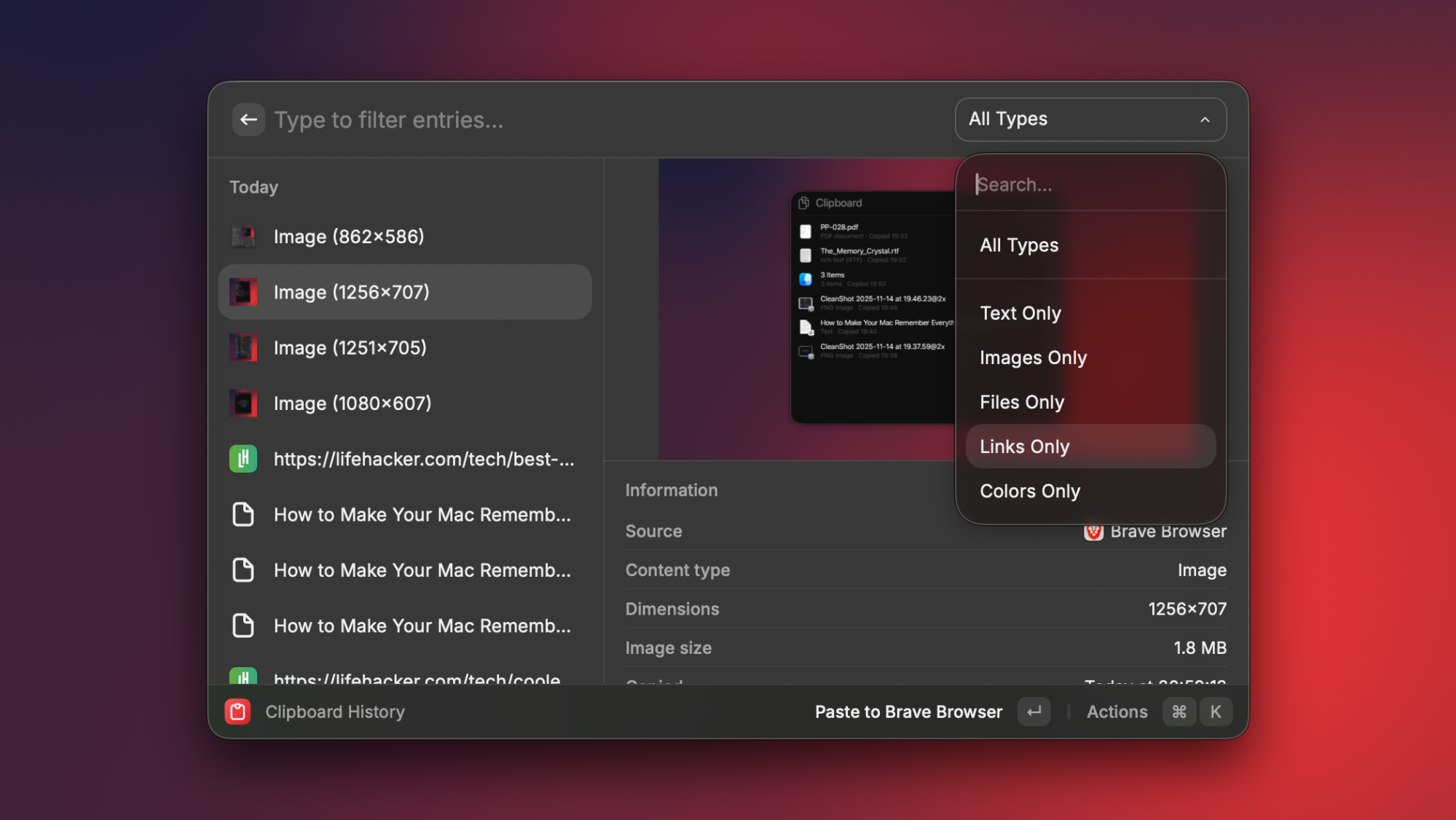
- Smarter Filtering and Search: While Spotlight is good, perhaps more dedicated filters within the clipboard history itself could be useful – filtering by application, date, or content type (e.g., “show me only images I copied”).
- Universal Clipboard History: This is my personal dream. Imagine copying something on your iPhone, and it not only appears on your Mac’s current clipboard but also gets added to its history, and vice-versa. That would truly be a seamless, multi-device experience.
- Intelligent Suggestions: Could macOS eventually learn your copy-paste habits? Perhaps suggesting relevant clipboard items based on the app you’re currently using or the context of your work.
- Actionable Clipboard Items: For certain copied items (like phone numbers or URLs), could Spotlight offer direct actions, such as “Call this number” or “Open this link in browser,” directly from the history?
These are just musings, of course, but they highlight the exciting potential of this foundational improvement. As we embrace new ways of interacting with our digital world, from enhanced clipboard management to advanced displays like those found in the Rayneo Air 3S Pro AR glasses, the user experience continues